Transferring Products by Dragging and Dropping on the Map
Transferring products within the map made it easier. Instead of editing a list from the location where the product is coming from and then editing a list again to where the products are moving into, you can simply drag and drop products.
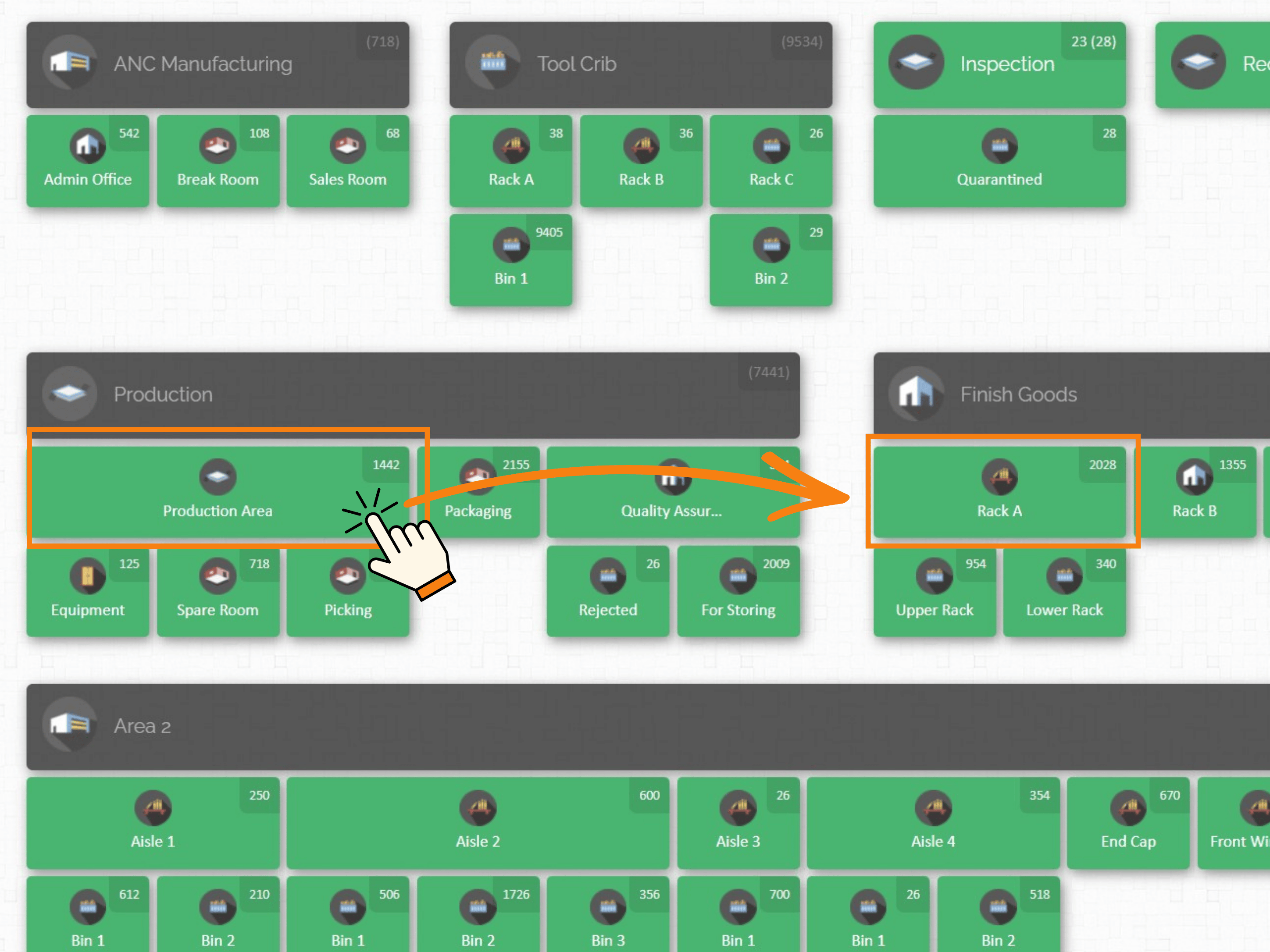
Click and hold and source location (example above shows Receiving as the source location) and then drag it to the new location (example shows Rack C)
A window will pop up showing two panels which represents the "from" location and the "to" location.
left panel shows the source location and all the available products in that location
The right panel shows the new location where you want to transfer the products.
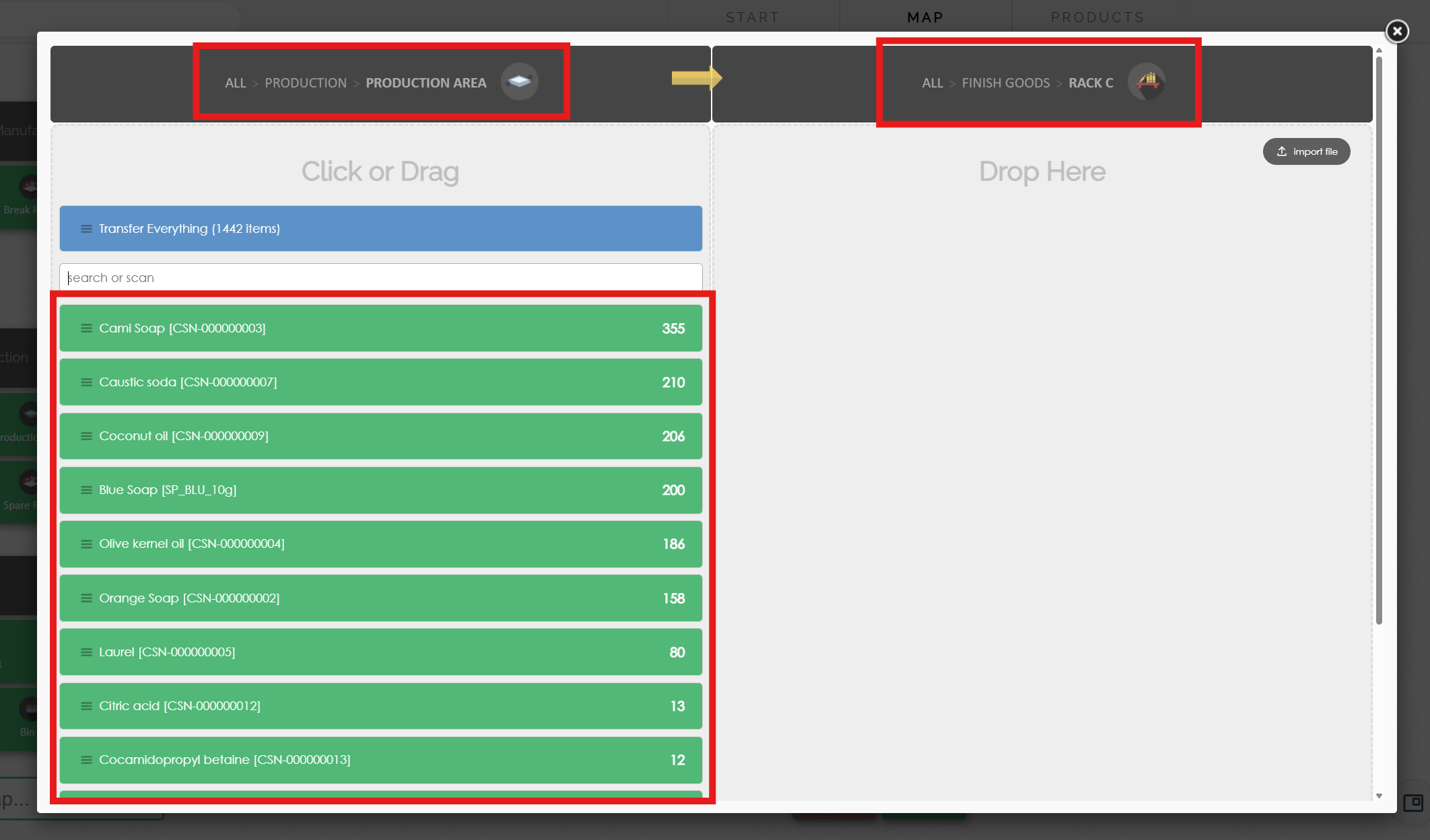
Select the product you want to tranfer from the source location, and then drag and drop it to the right panel. Doing this means the map will deduct the invnetory from source location and transfer it to the new location.
You can use the search field either type the product name or number, or scan the product using a barcode scanner and it will show you the product.
You can click the product/s you want to transfer, or you can drag them.
Clicking on a product to transfer it one at a time
Drag a product to transfer the entire quantity.
Click on a quantity to manually select the amount to transfer.
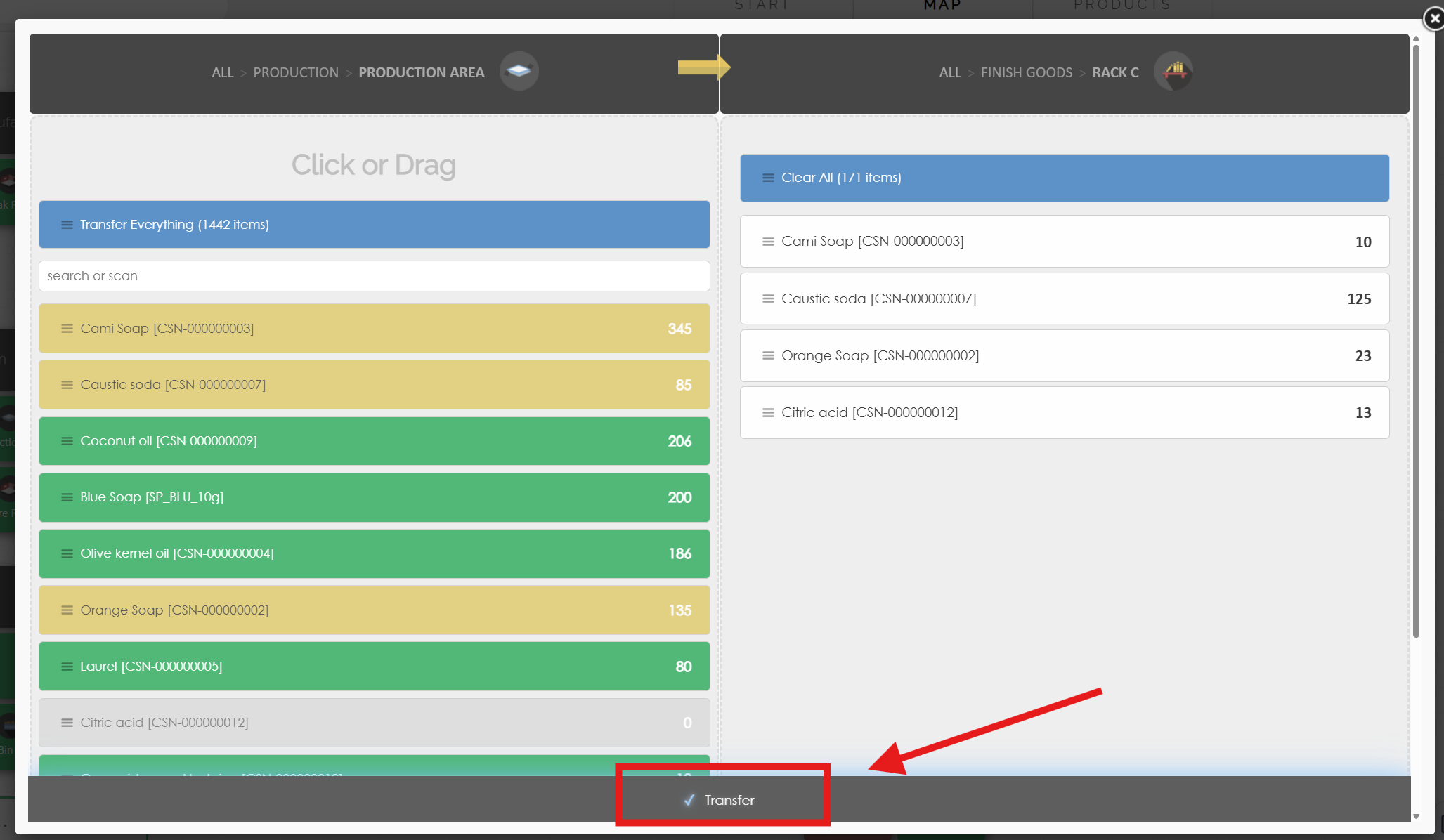
Once done, click the Transfer button to complete the transfer and then leave a note (not required but recommended)