

Transferring Products via the 'Start' Page.
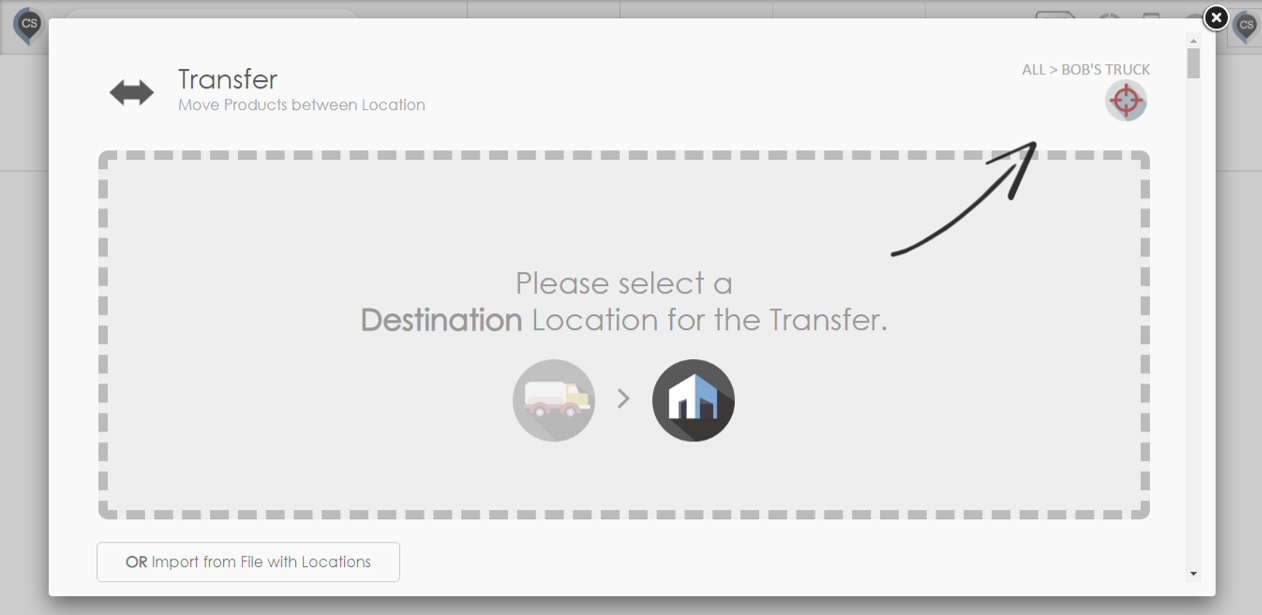
1.From the 'Start' page, click on 'Transfer'.
2. You will be asked to select 2 locations.
The first location is the Source of the transfer.
The second location is the Destination of the transfer.
3. To select products to transfer, follow the same instructions as when you are 'Checking Products IN and OUT of a Location'.
4. To upload products from a spreadsheet, the directions in the 'How to Transfer or Check in/out Using a File' article should help you.
Transferring Products by Dragging and Dropping on the Map
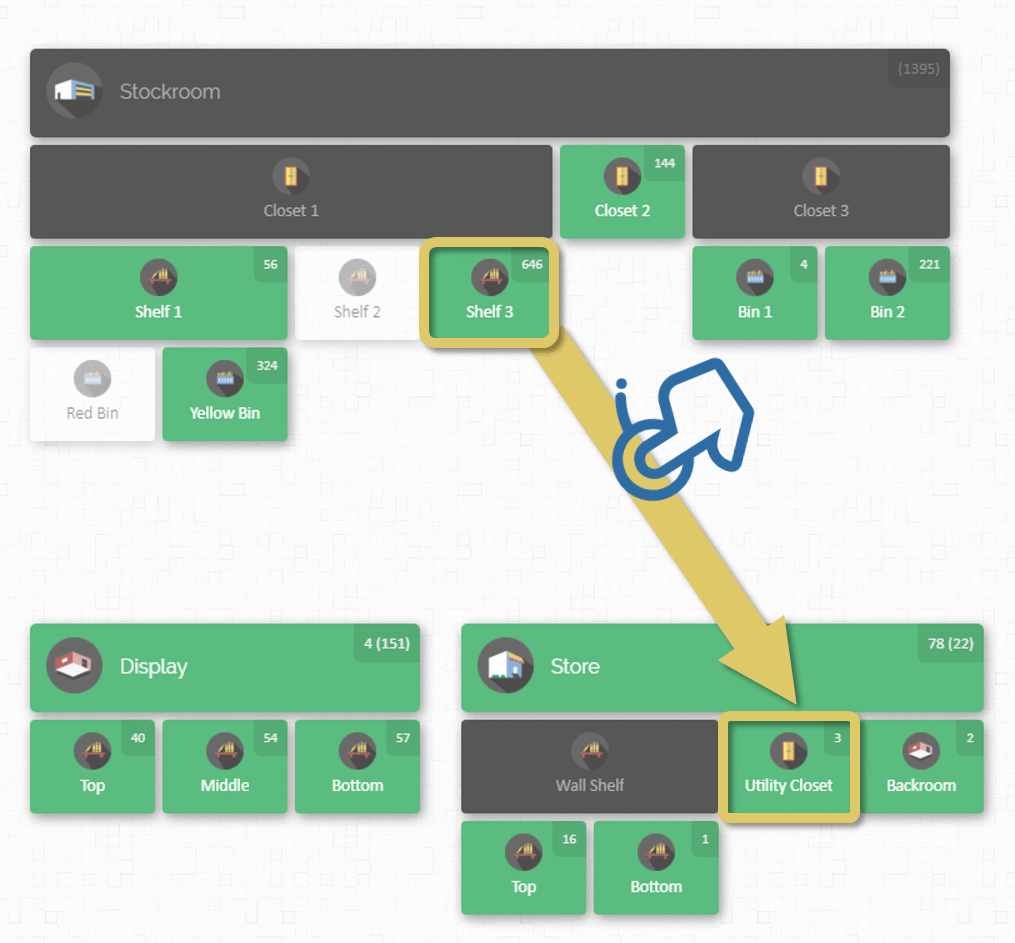
1. On your inventory Map, click on a location with products inside it and drag it to another location where you want its contents to be transferred.
A window will pop up showing the 2 locations and all the contents of the source location.
2. You can click the product/s you want to transfer, or you can drag them.
Clicking on a product to transfer it one at a time
Drag a product to transfer the entire quantity.
Click on a quantity to manually select the amount to transfer.
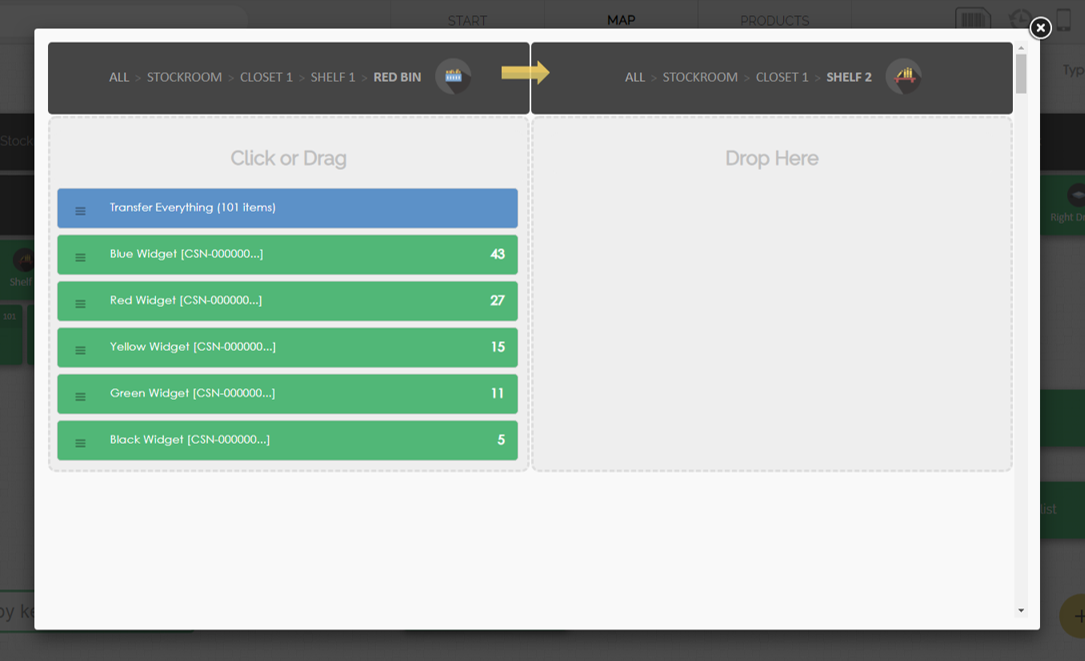
3. After selecting the items to transfer, click 'Save'. You will be prompted to leave a comment regarding the transfer (This is optional, but we always recommend leaving comments).
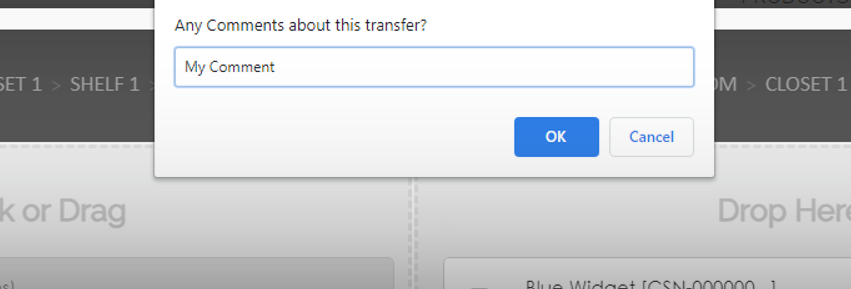
Dragging and dropping is a very quick and easy way to move things around directly on your map.
Dragging and Dropping with the Map Filter
CyberStockroom allows you to filter your map by typing a keyword. You can read more about this in the Viewing Product Quantities and Locations article. Combining the map filter with the Drag and Drop functionality makes it very easy to find and move items within your inventory
1. Type some text into the map filter on the map page to find a product or group of products.
2. Drag and drop between any two locations on your map.
By using the map filter, the only products that will be shown are those that have been filtered, regardless of how many other products there are in the source location.
3. Click save to complete the transaction.
Transferring Products with a Barcode Scanner
Users can transfer products using a barcode scanner. You can read more about this in the 'Quick Barcode Scanning' article.