

📌 Note: Formatting files for upload can sometimes be tricky. If you run into any issues, please reach out to our support team at support@cyberstockroom.com, and we'll be happy to assist you.
Transferring, Checking Items In/Out Using a File
1. Navigate to the Check-In/Out or Transfer Pages. Refer to the articles:
2. Click the ‘Import From File’ Button
You'll find this button in the upper-right corner of the page.

3. Upload Your File
Click the "CLICK TO UPLOAD A FILE" button.
Select and upload a CSV file (e.g., SAMPLE CSV FILE).
You can create a CSV file using spreadsheet software like Microsoft Excel or a simple text editor like Notepad.
4. Match the Fields
CyberStockroom will automatically detect the fields from your spreadsheet.
The detected fields will appear on the left side of the screen.
Match the Product Number and Quantity fields to their respective columns. (Click, hold, and drag the fields)
Click Next to proceed.
5. Add a Comment (Optional)
Write a comment for the transaction.
Click ‘Save Comment’ to finalize the transaction.
Transferring, Checking Items In/Out Using a File with Multiple Locations
If your transaction involves multiple locations, follow these steps below.
1. Go to the Check-In/Out or Transfer Page. See the articles:
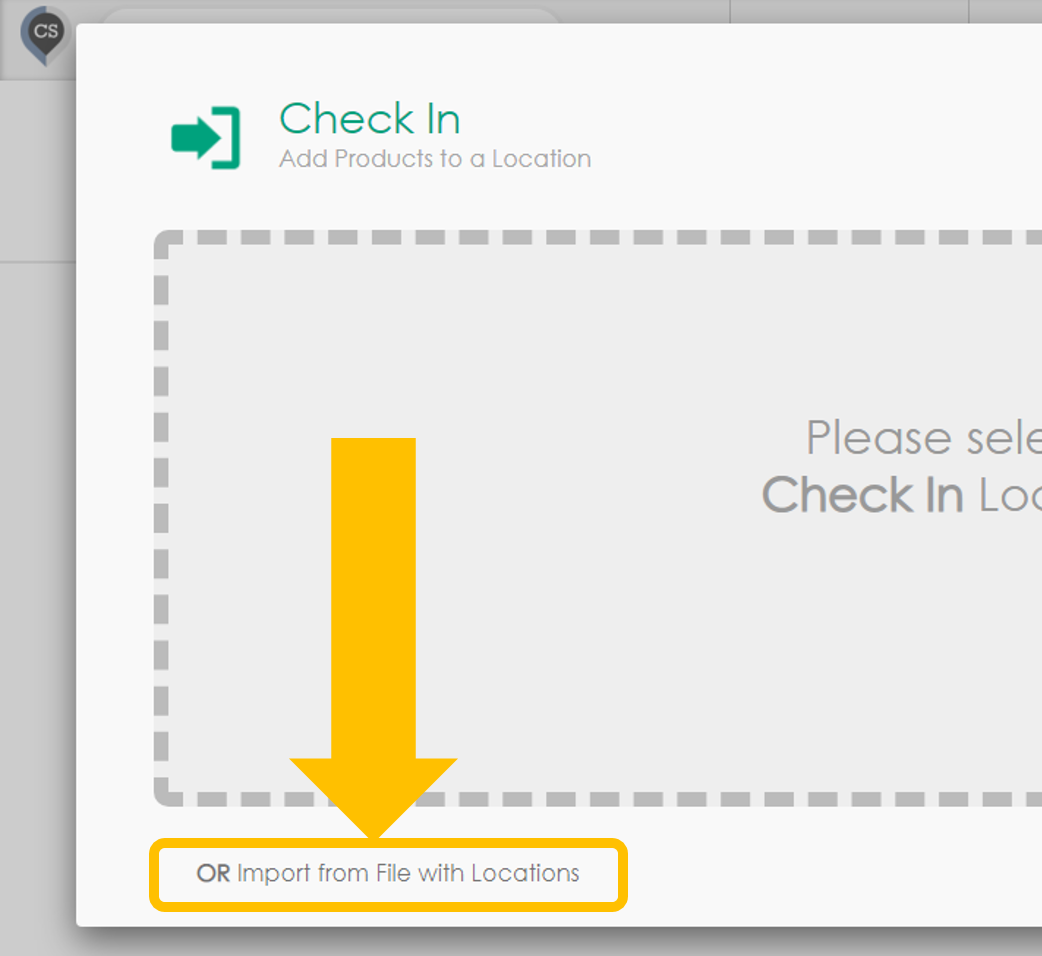
2. Choose Import From File With Locations
Instead of selecting a specific location, click the button at the bottom-left of the window labeled ‘Import From File With Locations’.
3. Upload Your File
Click "CLICK TO UPLOAD A FILE" and select a CSV file (e.g., SAMPLE CSV FILE).
4. Match the Fields
CyberStockroom will detect the fields from your spreadsheet and display them on the left side of the screen.
Match the following fields to their respective columns:
Product Number
Quantity
Location Number
For transfers, you’ll also need to match:
FROM Location Number
TO Location Number
Click Next to continue.
5. Add a Comment (Optional)
Write a comment for the transaction.
Click ‘Save Comment’ to complete the process.