Open the Transfer Window Using Drag and Drop
Step 1: Select the Source and Destination Locations
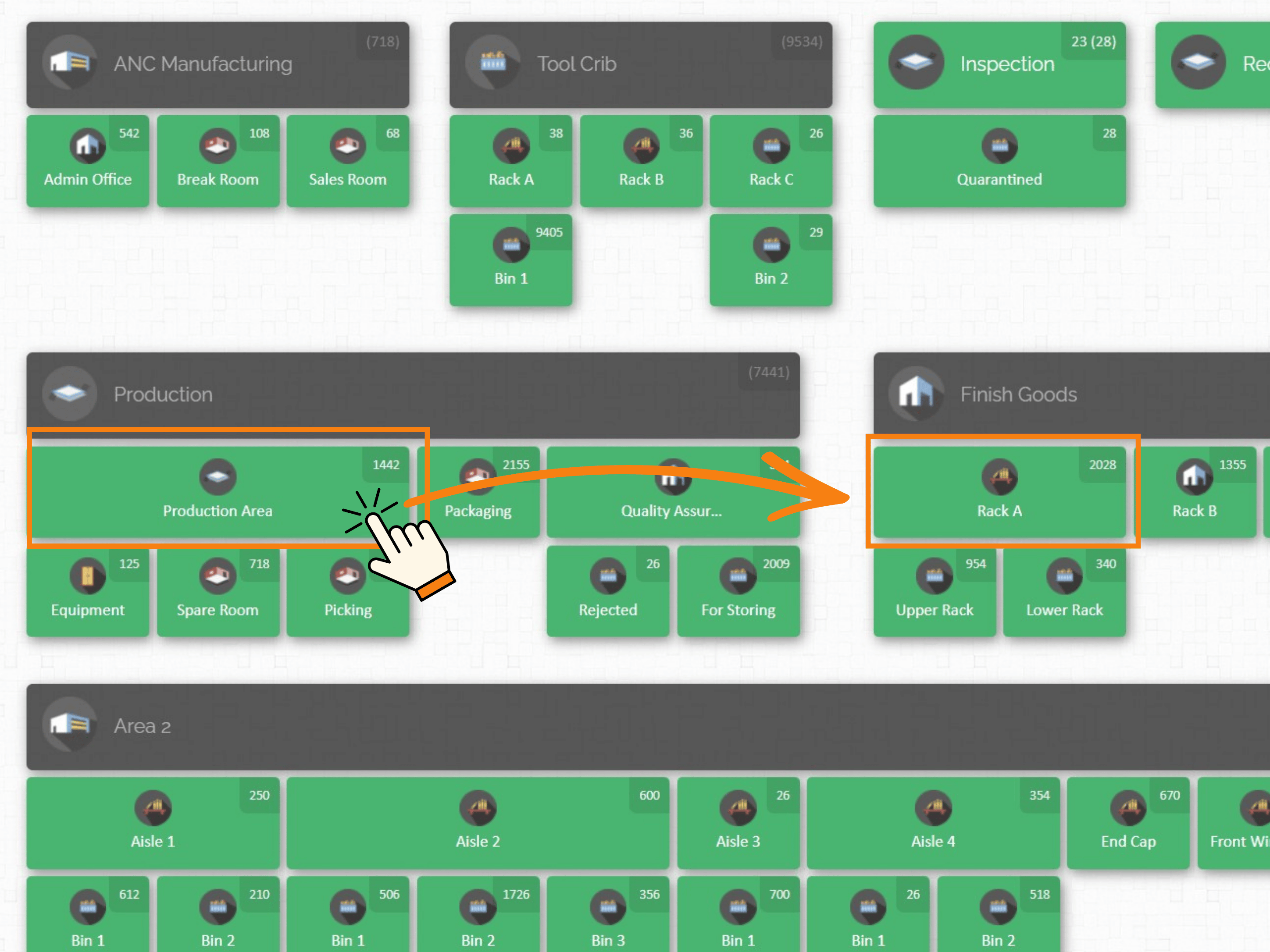
Click and hold the source location, then drag it to the destination location.
In the example below, Production Area is the source location, and Rack A is the destination location.
Step 2: The Transfer Window
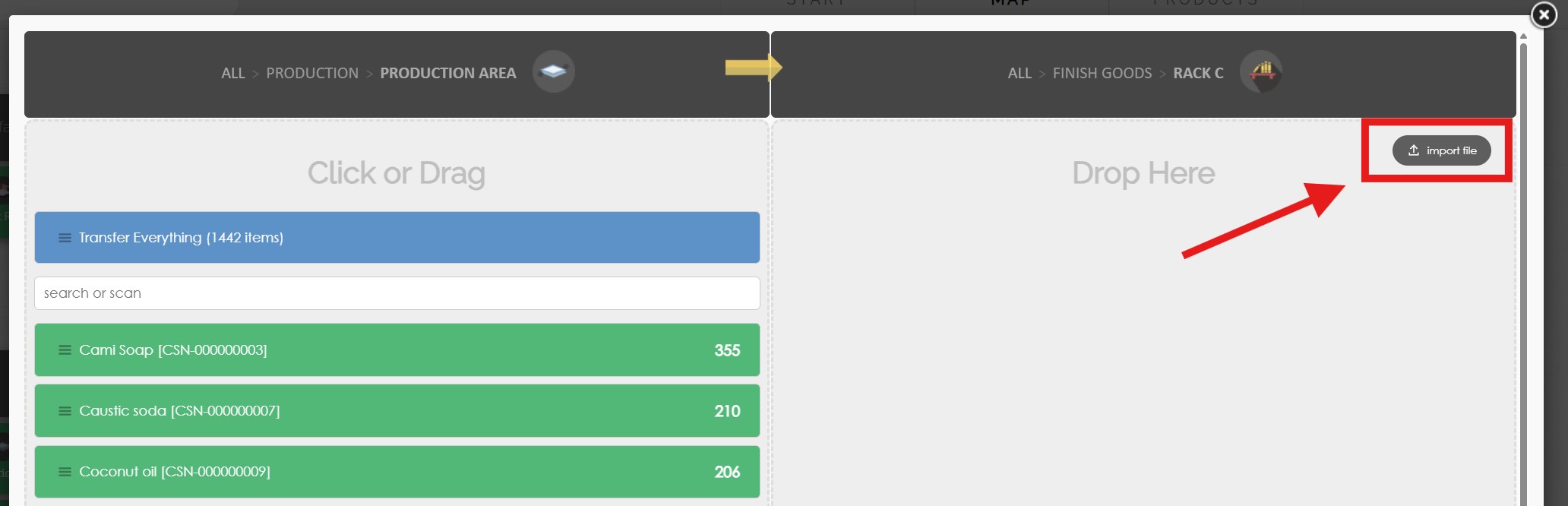
A window will appear with two panels representing the source and destination locations:
The left panel shows the source location and all available products stored there.
The right panel shows the new location where the products will be transferred.
Step 3: Import Your Spreadsheet
Click the Import File button in the upper-right corner of the transfer window.
Then:
Click Import File.
Select and upload a CSV file.
Click Next.
You can create your CSV file using spreadsheet software such as Microsoft Excel. A sample CSV file is also available here to help you format your spreadsheet correctly.
Step 4: Match the Fields
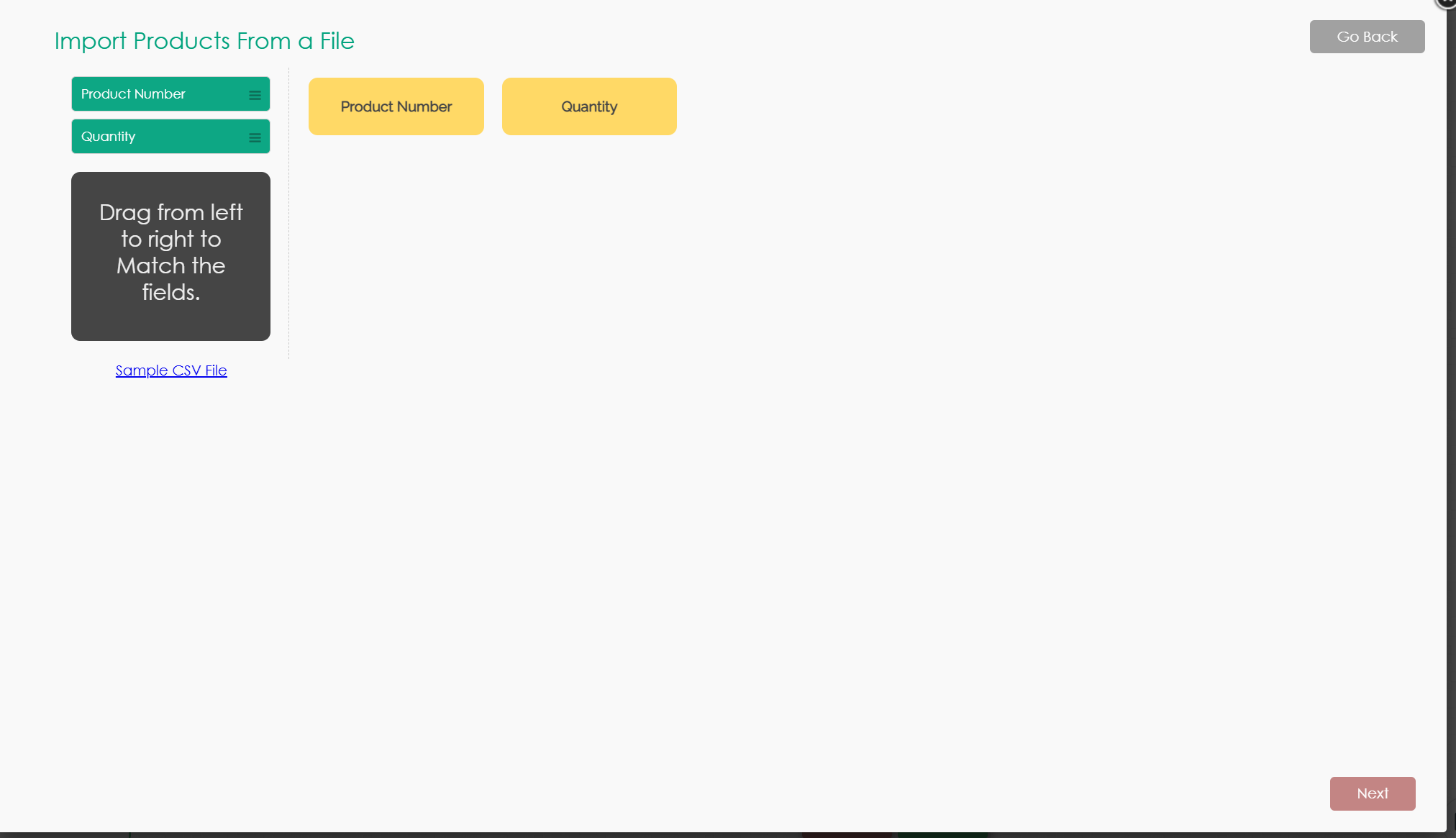
CyberStockroom will automatically detect the fields in your spreadsheet. The detected fields will appear on the left side of the screen.
Click and drag the following fields to their matching columns:
Product Number
Quantity
Once the fields are matched correctly, click Next to continue.
Step 5: Review and Complete the Transfer
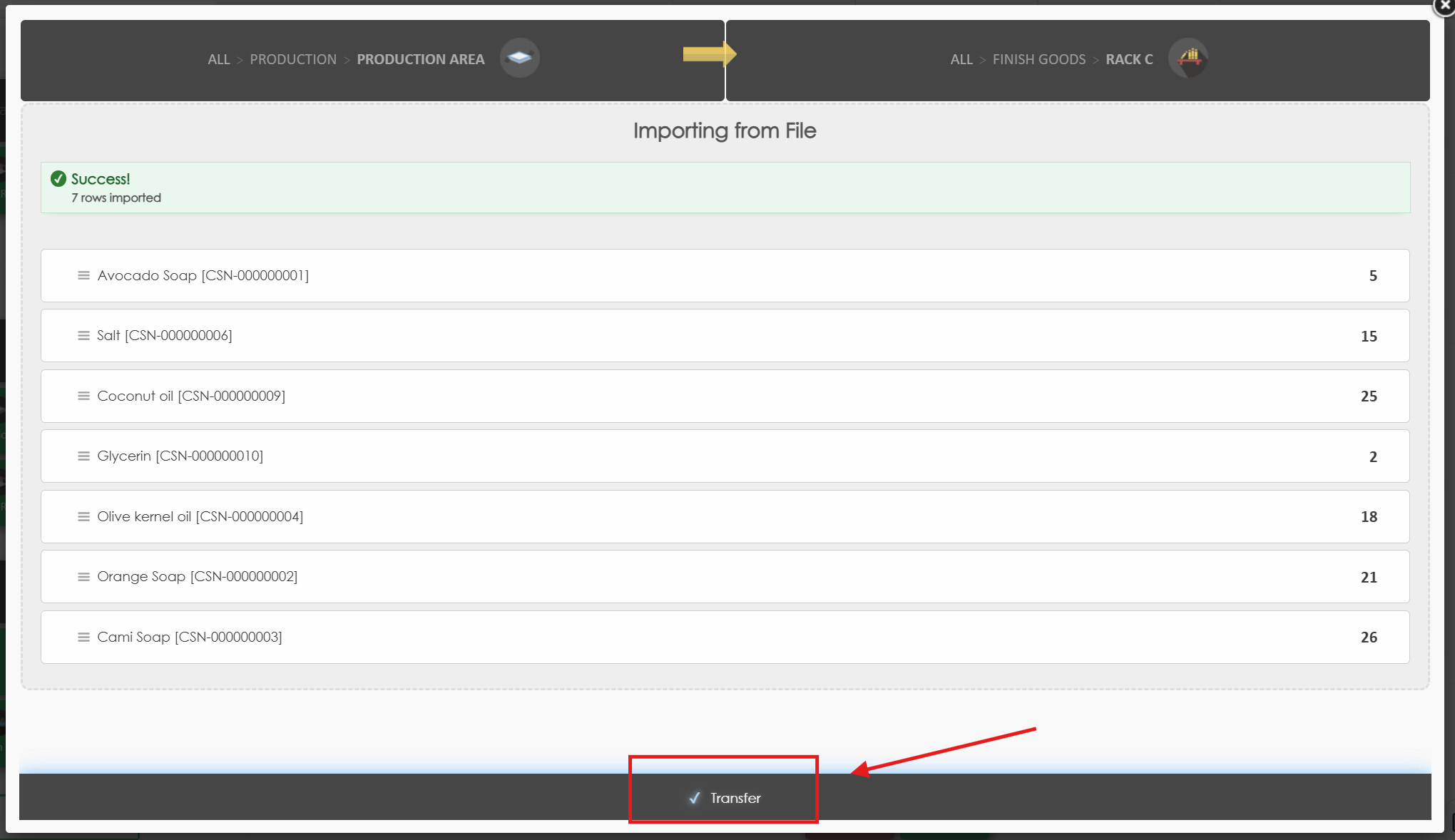
The next window will display the products and quantities that will be transferred.
Review the list, then click Transfer to complete the transaction.