
This article describes deleting a location from your map. To move products out of a location, please refer to the articles Checking Products IN and OUT of a Location and Transferring Products Between Locations.
Deleting Locations Directly on the Map
Hover your mouse over the location you want to delete and click on the 'Trash bin' icon that will appear above it.
A confirmation pop-up will inform you that any sub-locations will also be deleted, and all the products contained within will be checked out.
Click the green 'YES' button.
Search for a Location to Delete it
Type the name of the location you want to delete in the search bar on the top left corner of the page.
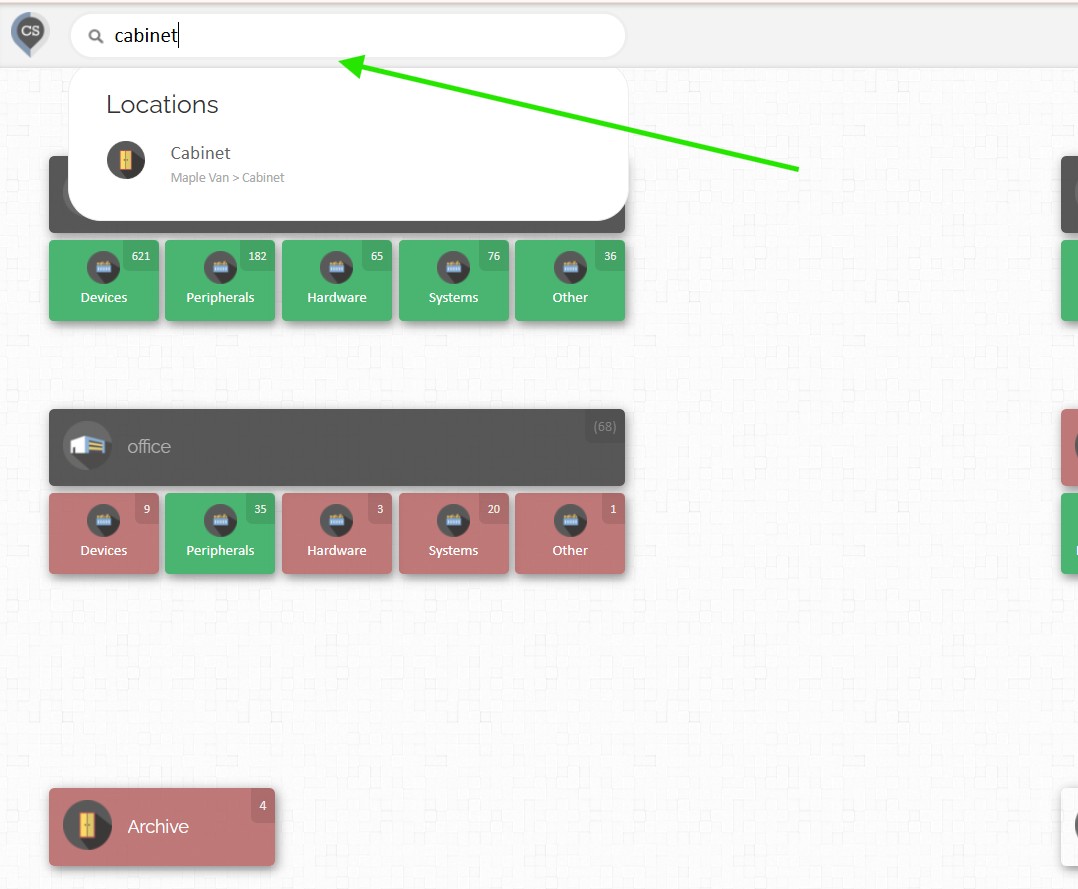
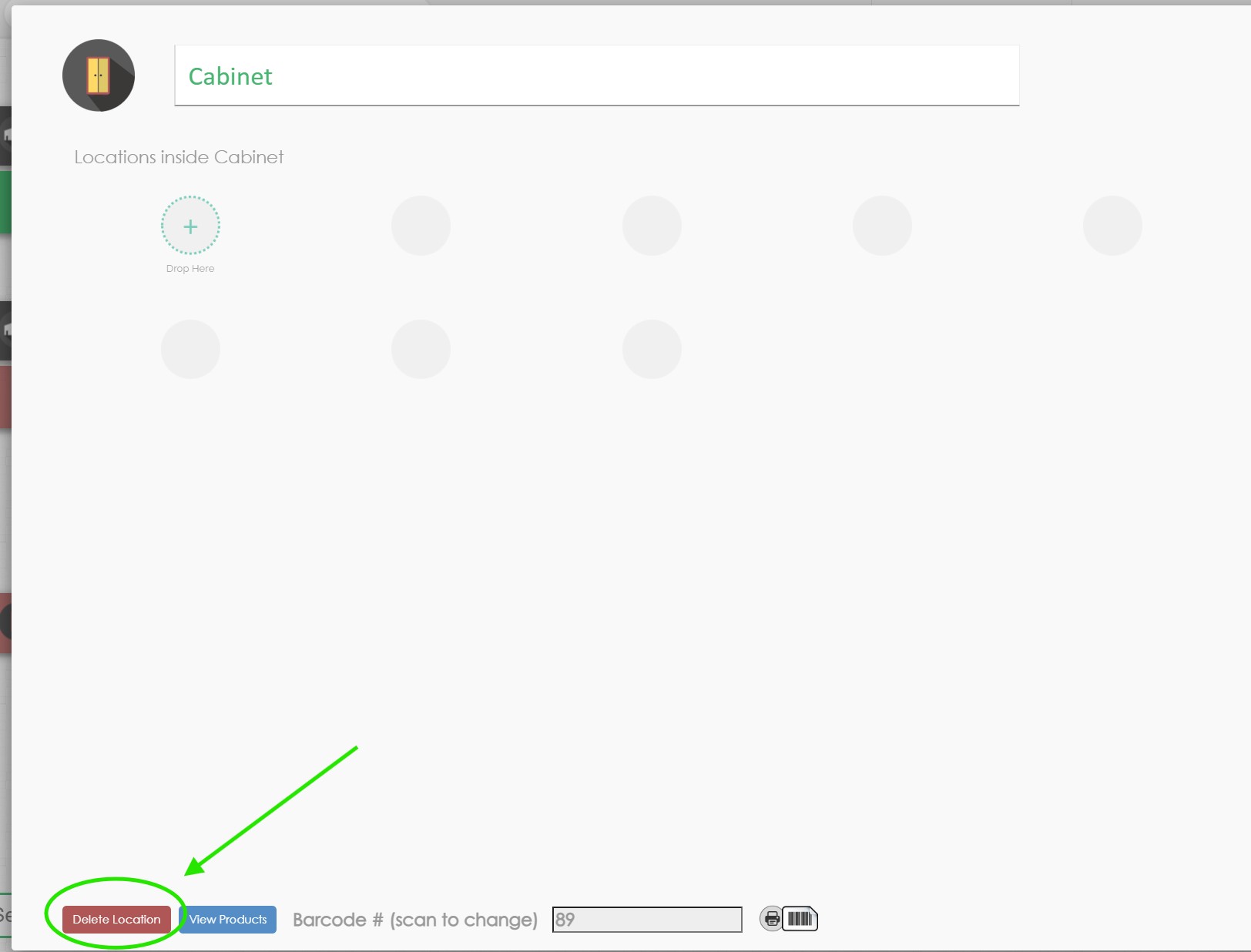
Click on the location to open up the location editor.
Click on the 'Delete Location' in the bottom left
A confirmation pop-up will inform you that any sub-locations will also be deleted, and all the products contained within will be checked out.
Click the green 'YES' button.