

How Can I See The Activity History?
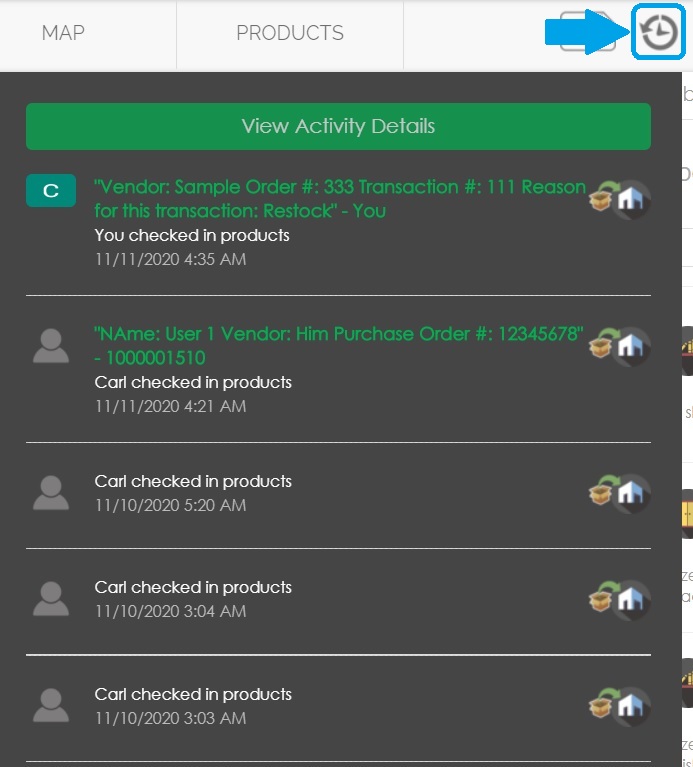
In the top right-hand corner of your CyberStockroom account, click on the button that looks like a clock, and it will take you to the activity history page.
Hovering your mouse over that button will also show you the most recent activities made to your map.
Can I Download the Activity History?
Yes, you can. You can learn more about this in the Downloading the Activity Report article.
What Can The Activity History Record?
Inventory
All checked-in items.
All checked out items.
All transferred items.
All adjusted items.
Products
All created products.
All edited products
All deleted products
Location
All created locations.
All edited locations.
All deleted locations.
User/Date/Time
In addition to everything mentioned above, the user who performed those actions, as well as the date and time, will all be recorded.
Transaction Comments
Whenever a user checks items in/out or when they transfer items, they will have the option to enter a transaction comment. Every comment made will be recorded in the activity history page.
Any detail written in the comments can be searched in the activity history page using the text box in the upper right side.
For more information, please take a look at the 'Transaction Comments' article.
Activity History Filters
As you use CyberStockroom, your activity history page will become full of transactions. It can become difficult to keep track of all transactions, so you will have the option to use filters. These filters will make the task of managing your inventory much easier.
Date
You can filter the activity history page according to date.
You can choose a date in the top right corner of the page, and the activity history will only show activities made on that day.
Location
You can filter the activity history by location.
Choose a location on the selector just below the date, and the page will change according to the activities made only in that location.
Product Number/Keyword
The activity history can be filtered by product number or keyword.
Type a product number or any keyword from a product in the search bar, and the activity history will show you all activities related to that product.
User
The activity history can also be filtered by user.
You can choose a specific user on the top left side of the page, and the activity history will only show activities made by that user.
Transaction Comments
You can search transaction comments on the activity history.
Type any detail from any comment in the text box just below the location selector, and the whole comment will appear on the activity history.
Inventory/Products/Locations
On the left side of the activity history page, there is a panel that show/s a list of buttons.
Press any button on this panel, and the activity history will be filtered according to that button.
The page can be filtered by:
Inventory activities - check in / check out / item/ transfers / item adjustments
Product management activities - created / edited / deleted items
Location management activities - created / edited / deleted locations
To make it even easier for users to navigate through the activity history page, the above filters can be combined in many different ways.
If you want to see what a specific user did at a certain location on a specific date, you can combine those filters, and you will find exactly what you are looking for.
These filters can be used together with the search box, and they give us full traceability.