

We understand that for companies with large inventories, barcodes and barcode scanners are integral parts of the inventory management process. This is why barcode scanners can be used to do almost anything on CyberStockroom.
What Type of Barcode Scanner Should Be Used?
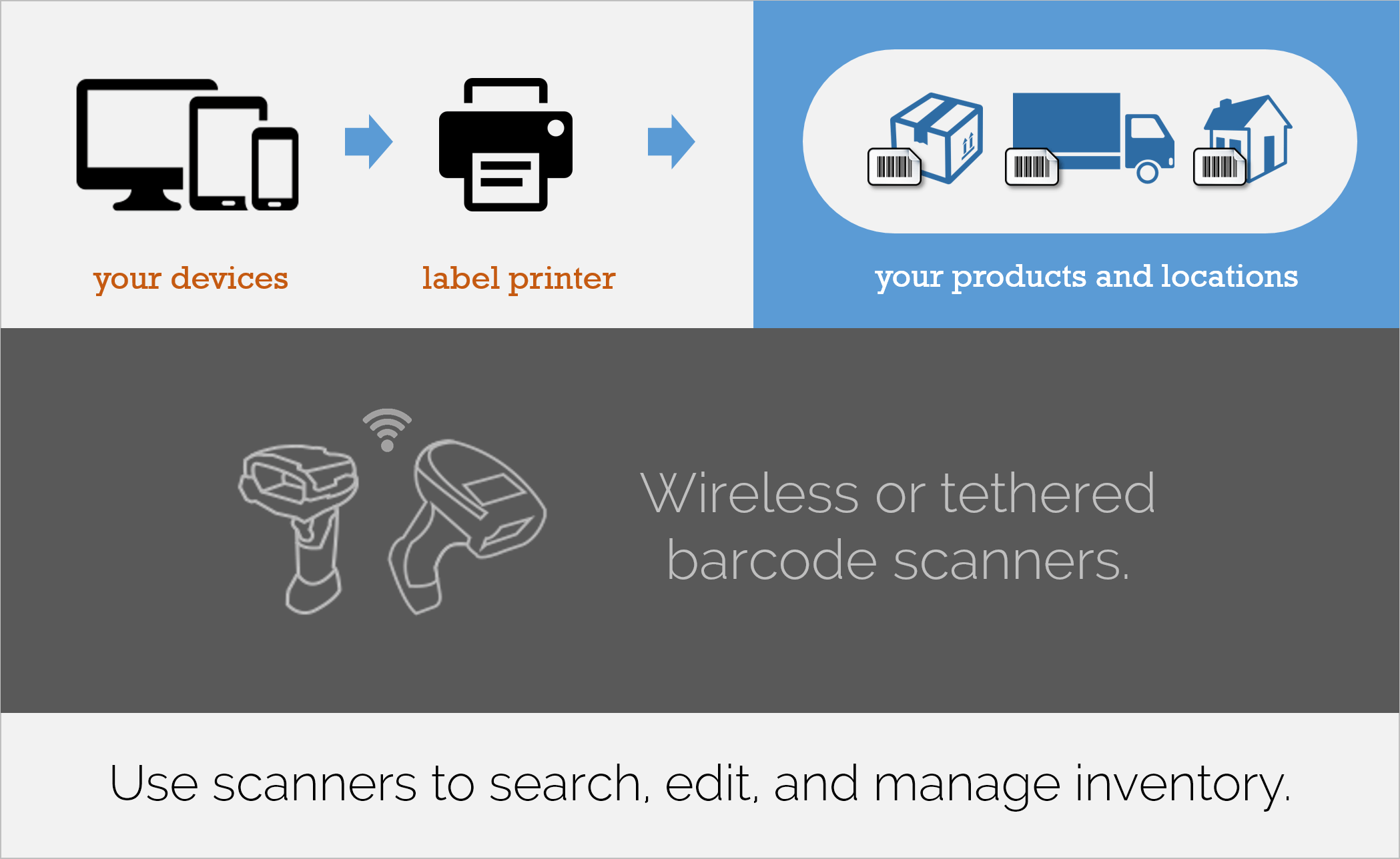
Although you can use any type of barcode scanner, we recommend wireless Bluetooth scanners like this one. If you need to print your own barcode labels we recommend this printer for the best formatting and integration with CyberStockroom.
What Can a Barcode Scanner Do in CyberStockroom?
Barcode scanners behave almost exactly like keyboards. Scanning a code is exactly the same as typing it and pressing Enter.
Any type of textbox on CyberStockroom will accept input from a barcode scanner.
You can use a barcode scanner to search, check in/out, and/or transfer products.
How Do I Get Barcode Numbers?
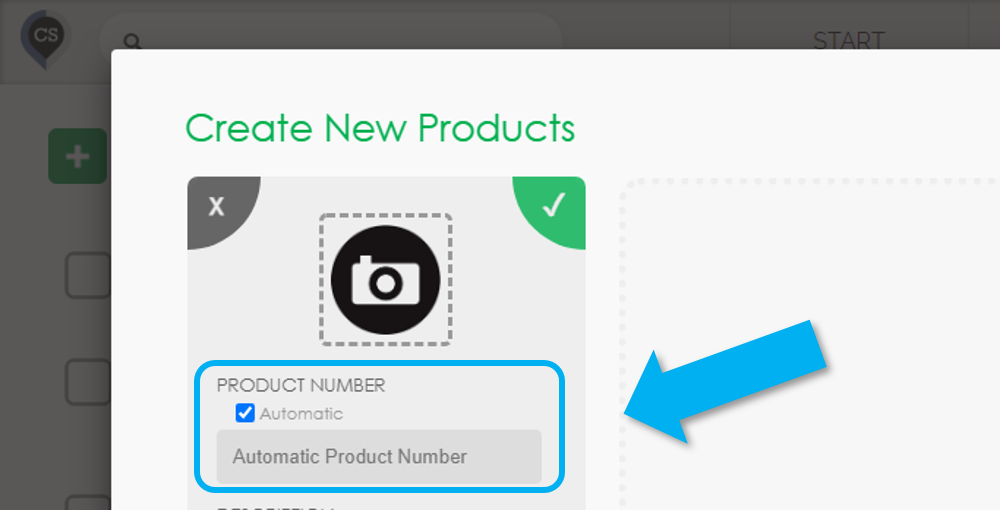
Product numbers (Barcodes) can be generated automatically, but you can use your own if you prefer. Please refer to the article on Creating New Products to learn more.
Each location you create in the CyberStockroom map has a barcode number that is automatically generated, but you can replace these numbers with your own. To learn how to do this, please take a look at the Editing Locations article.
When you click on any product in your catalog/inventory you will be able to print its barcode.
When you click the 'Edit' icon on a map location you will be able to print its barcode.
The 'Quick Scan' Feature
This is a feature in CyberStockroom that allows users to perform transactions back to back with a barcode scanner. Please refer to the 'Quick Barcode Scanning' article or watch the video below for more information.