

Upload Your CSV File
1. Open the ‘Create New Products’ pop-up.
📌 (See: 'Creating New Products')
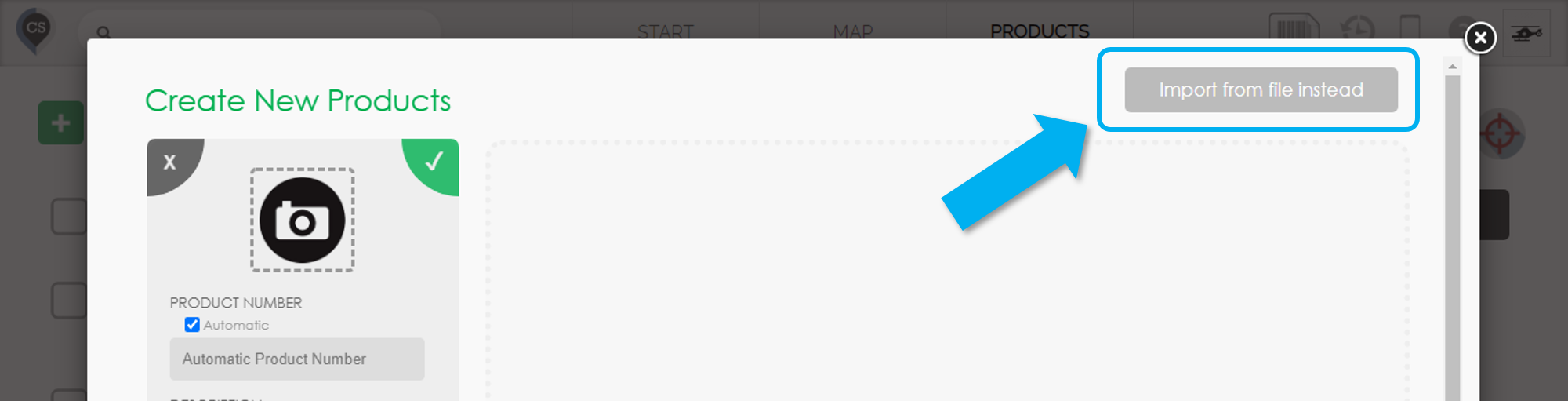
2. Click ‘Import from File Instead’ in the top-right corner.
3. Click ‘Upload a File’ and select a CSV file containing your product details.
4. Upload your CSV file with product information.
You can create a CSV file using Excel, Google Sheets, or even a simple text editor like Notepad.
The sample file includes only the default product fields, but you can add custom fields as needed. (SAMPLE CSV FILE)
📌(See 'Custom Fields for Products')
Match Your Spreadsheet Columns
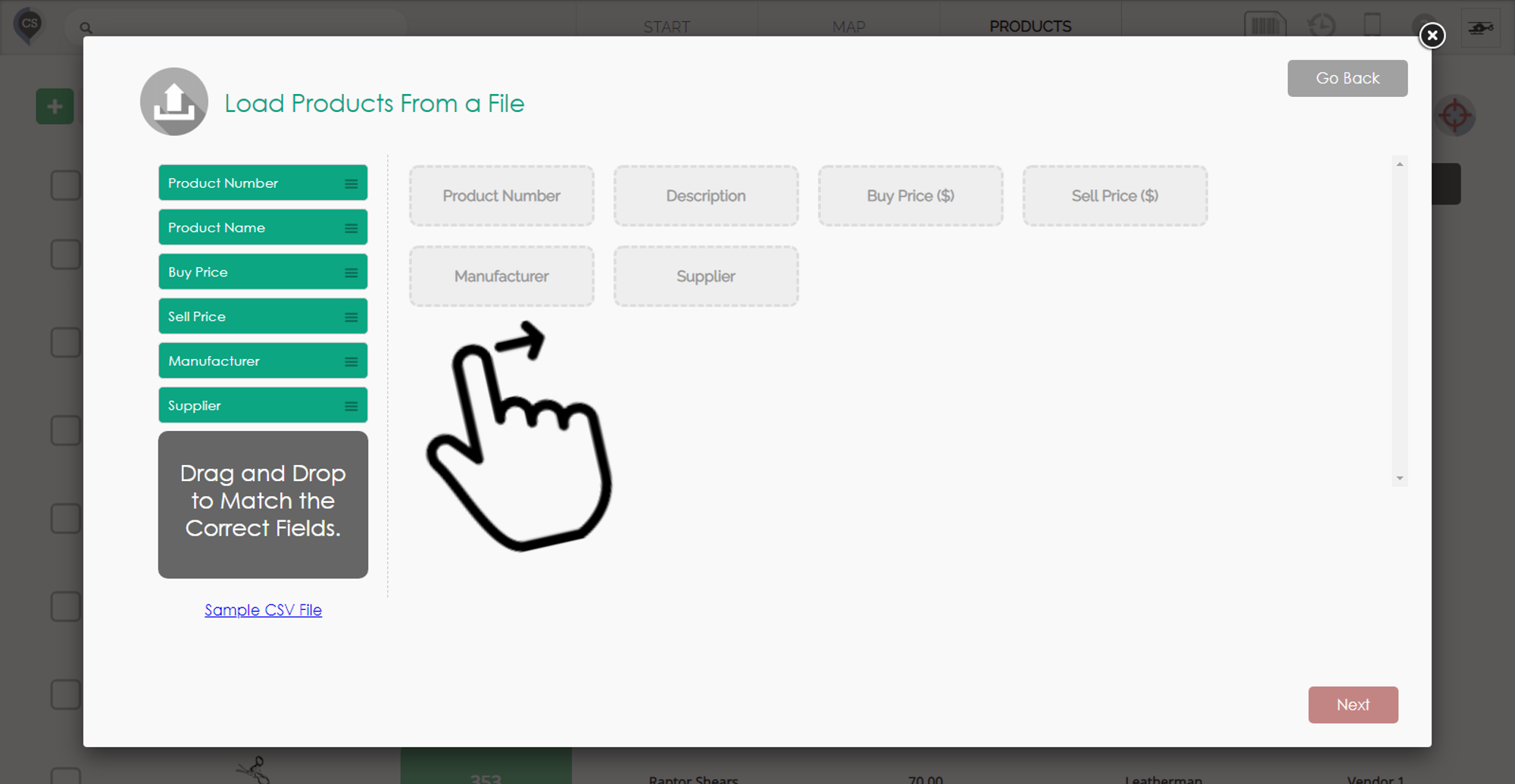
1. CyberStockroom will automatically detect the first row of your spreadsheet as column titles.
2. The system will display these titles on the left side of the screen.
3. Drag and drop each column from the left to the right to match it with the correct product field.
4. Click ‘Next’ to complete the import.
Check the products into your locations
Once your products are imported, they will appear in your product catalog, but they are not part of your active inventory yet. To make the product part of your active inventory, you need to check it in to a location
📌 (See The Product Catalog and Checking Products IN and OUT of a Location)
Video Guide