

This is ideal for team members who need visibility into the system without editing permissions.
✅ Read-only users can:
View the Inventory Map
View Products and Product Details
View the Activity History
🚫 Read-only users cannot:
Modify settings
Check items in or out
Create, edit, delete, or move products
Create, edit, or delete locations
Admins can assign read-only access either when inviting new users or by editing the access for existing users.
How to Set Up the Read-Only Feature
There are two ways to enable it:
🆕 Option 1: Invite a New User as Read-Only
Go to the Settings page.
Scroll down to the Profile & Team section.
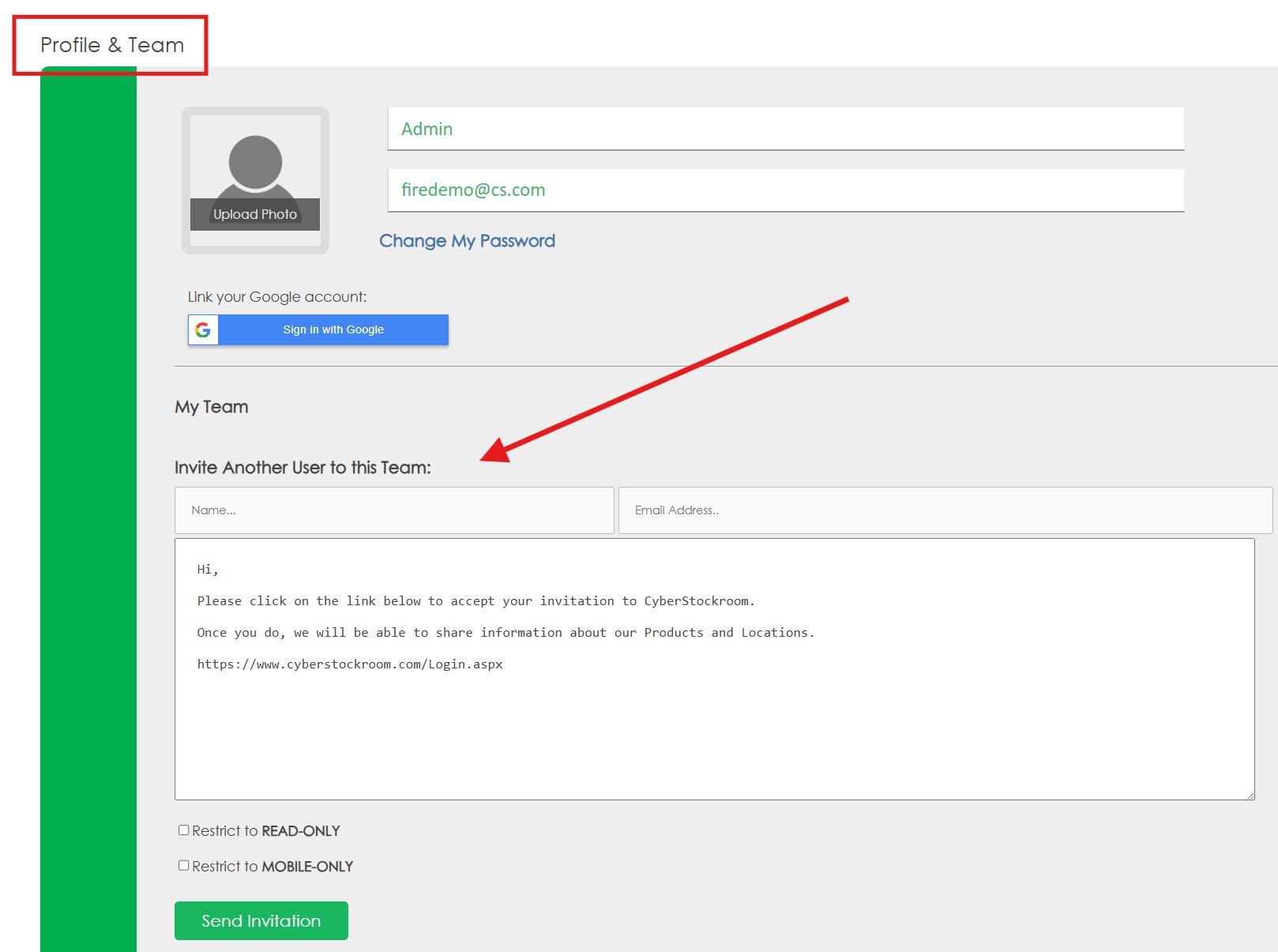
3. Enter the user’s name and email address in the fields provided.
4. You can customize the invitation message or keep the default. Do not remove the invite link from the message.
5. Check the box labeled “Restrict to READ-ONLY” and then click Send Invitation.
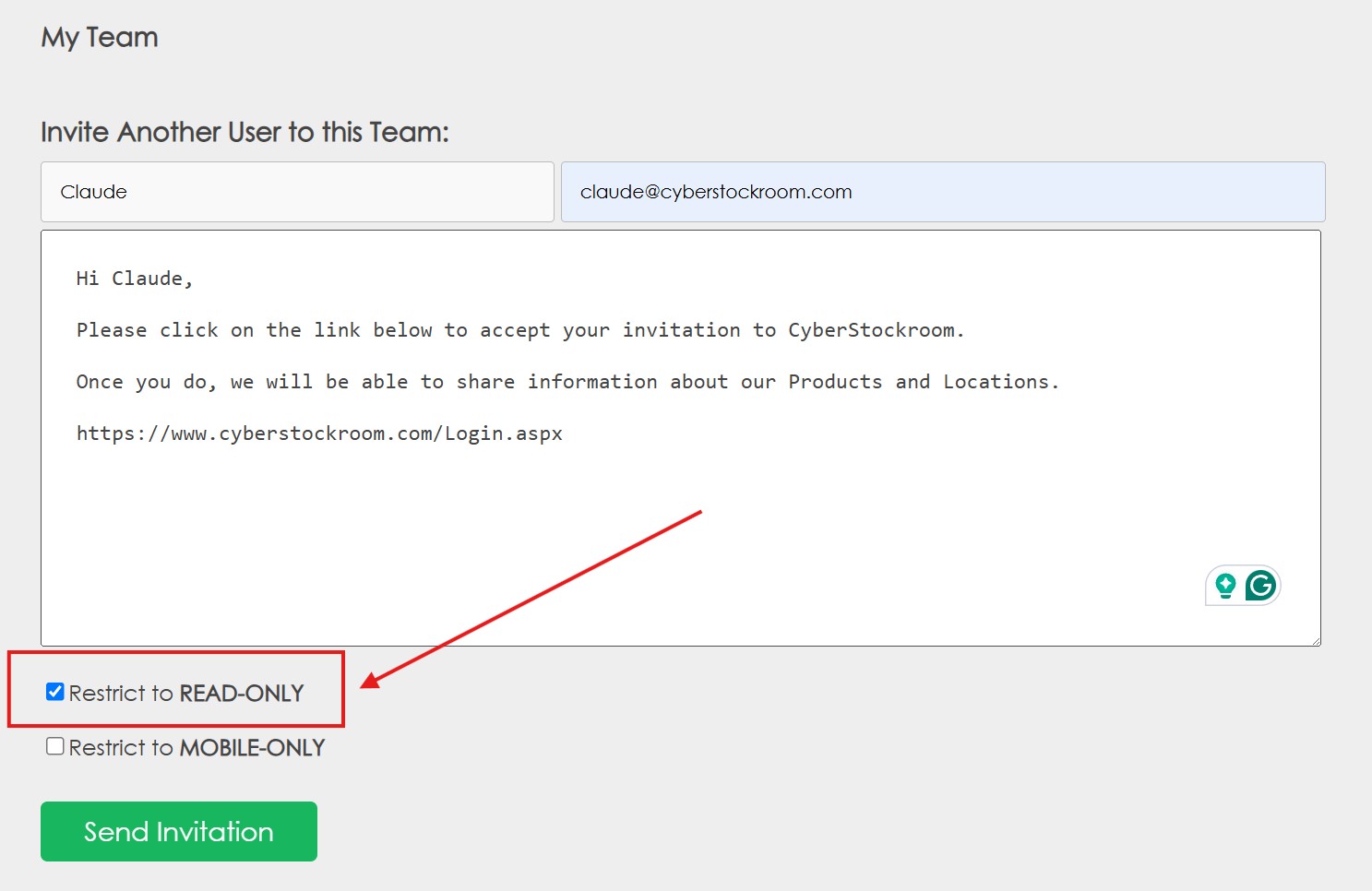
👤 Option 2: Set an Existing User to Read-Only
Go to the Settings page.
Scroll down to the Profile & Team section.
Find the name of the user you want to update and click the Restrict to READ-ONLY option.
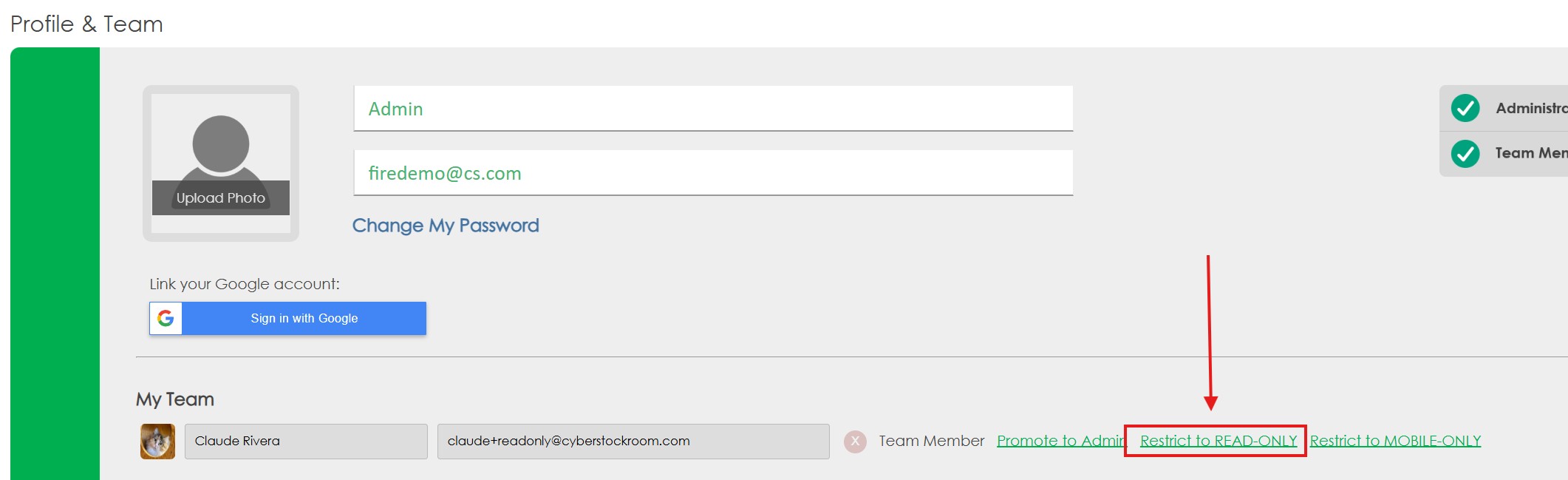
Once the restriction is in place, the user will only be able to view information in the system. This helps maintain data integrity while still providing visibility.