This article explains how to view the contents of an inventory location on your CyberStockroom map. To change product quantities, please see the article Changing Product Quantities.
Directly from the Map
The 'Peek' feature
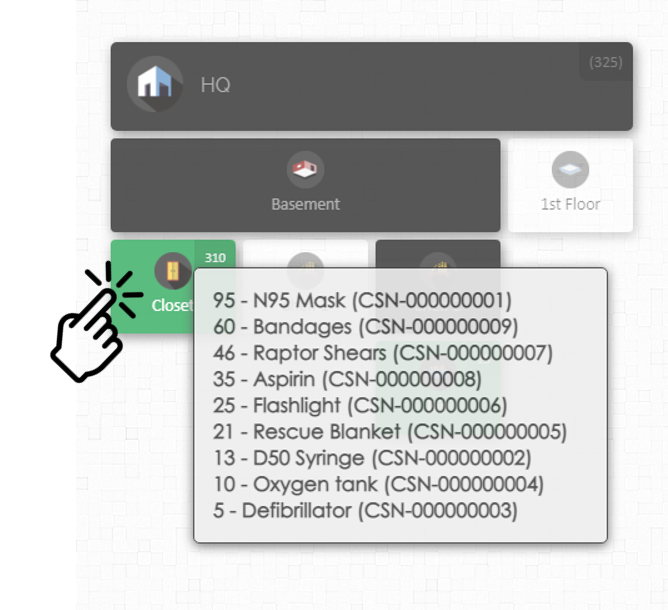
On the Map page, click on any location.
A window will pop up showing you the products inside that location and their quantity.
This option is useful if you want a quick preview of the items without leaving your map.
To view a more complete listing, see the next section.
Viewing all products inside a location
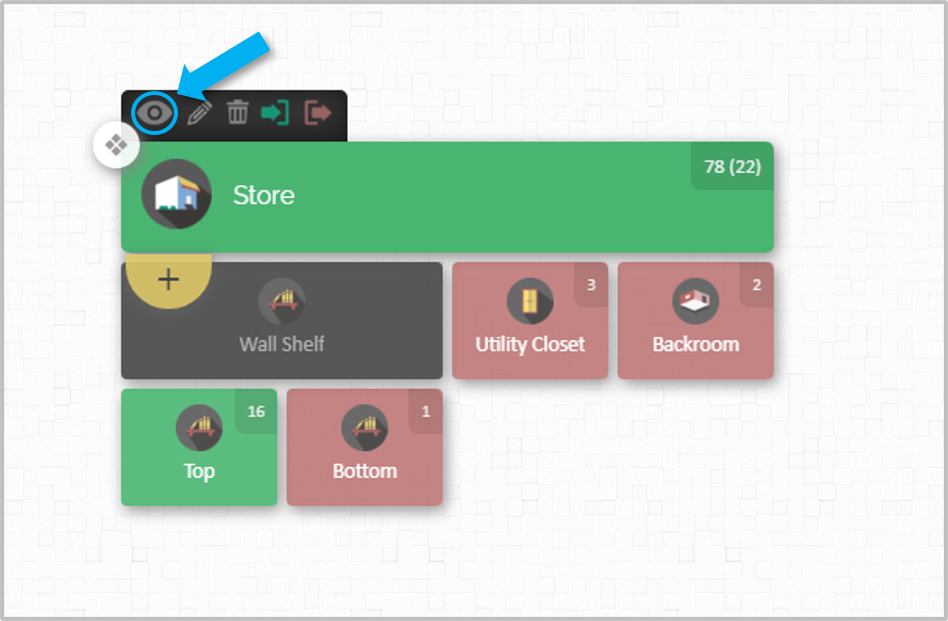
On the Map page, hover your mouse over any location and click on the view icon (the 'eye').
This will take you to the products page, showing you a detailed list of all the products inside that location.
This option is useful if you would like to see a more detailed view of the products inside a specific location or if you would like to change the properties and quantities of those products.
From the Products Page
Viewing the contents of a specific location
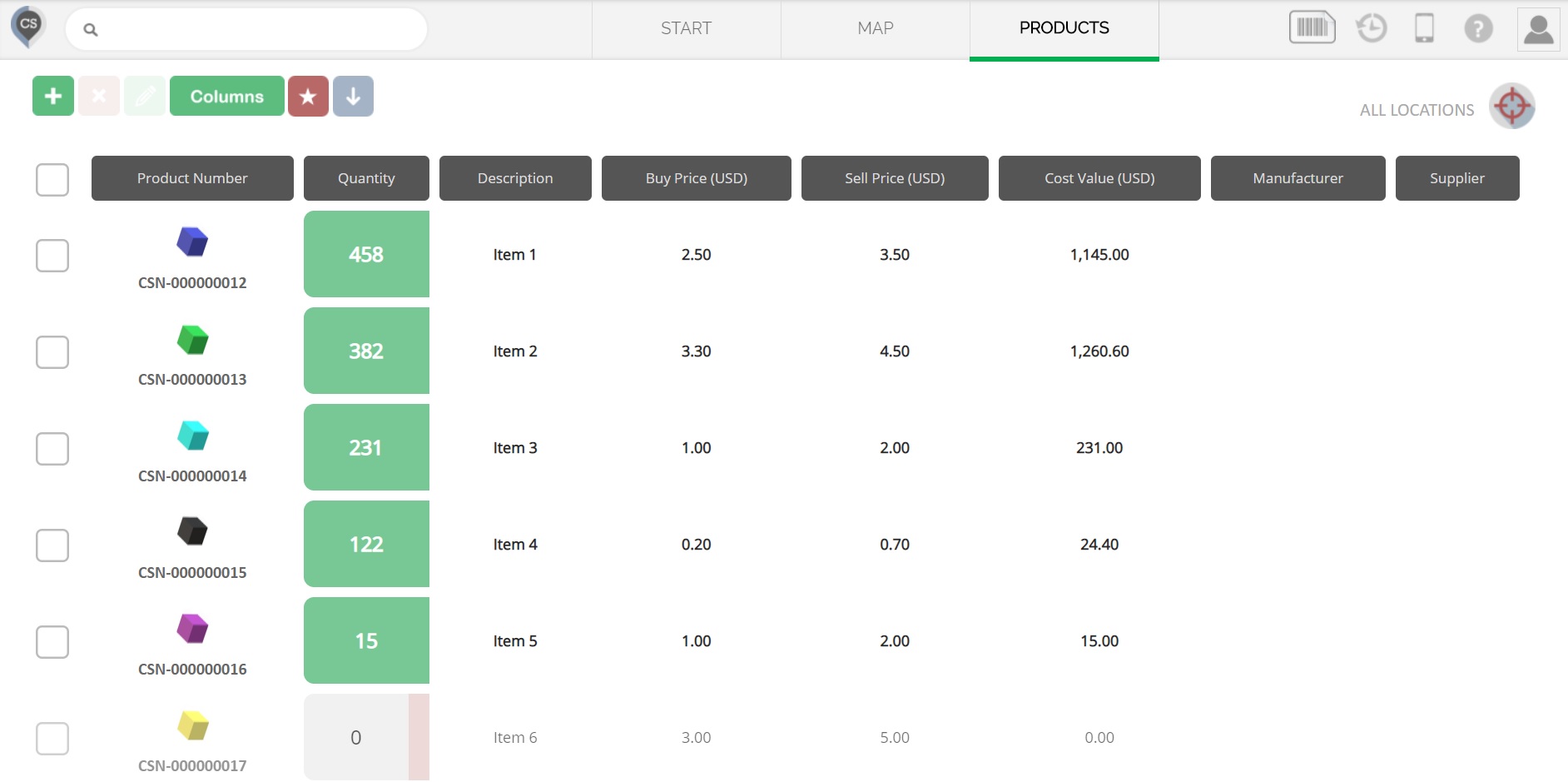
Hover your mouse over the location selector on the Products page.
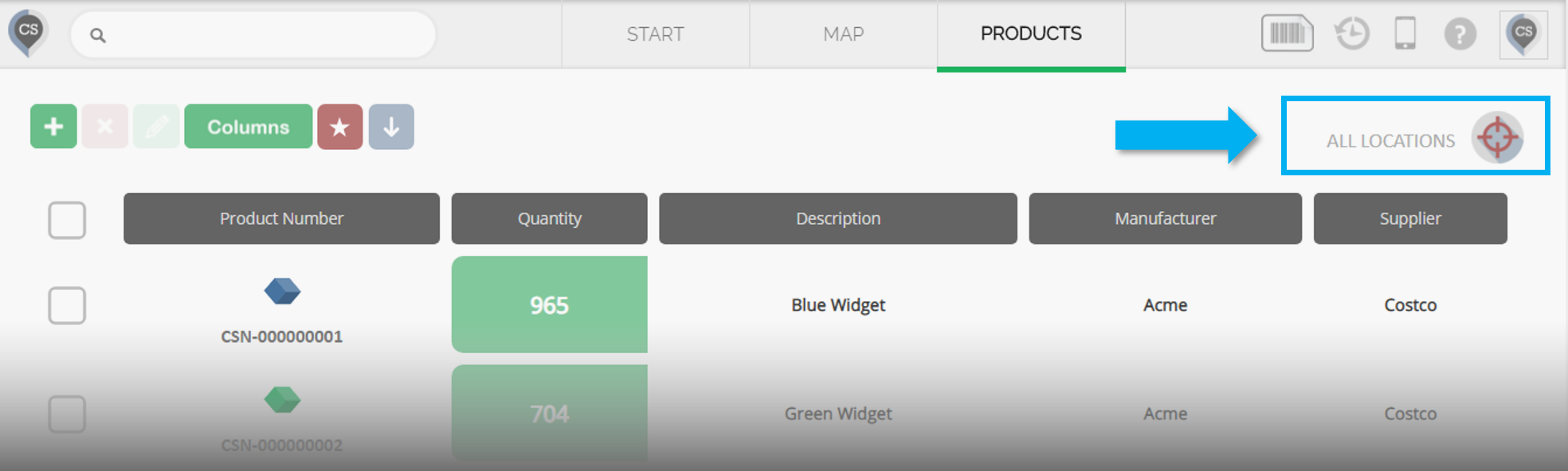
A drop-down menu of all your locations will appear. Choose the specific location whose contents you would like to view.
Note: this is the same page you will reach if you click on the view icon from a location on the map.
Product Catalog
Choosing 'ALL LOCATIONS' on the selector will show you your product catalog. To know more about the product catalog, please see the Product Catalog article.
This will give you a detailed view of all your products, including the ones that have not yet been placed in any location.