

For CHANGING product quantities please refer to this article.
Select a Product to View its distribution
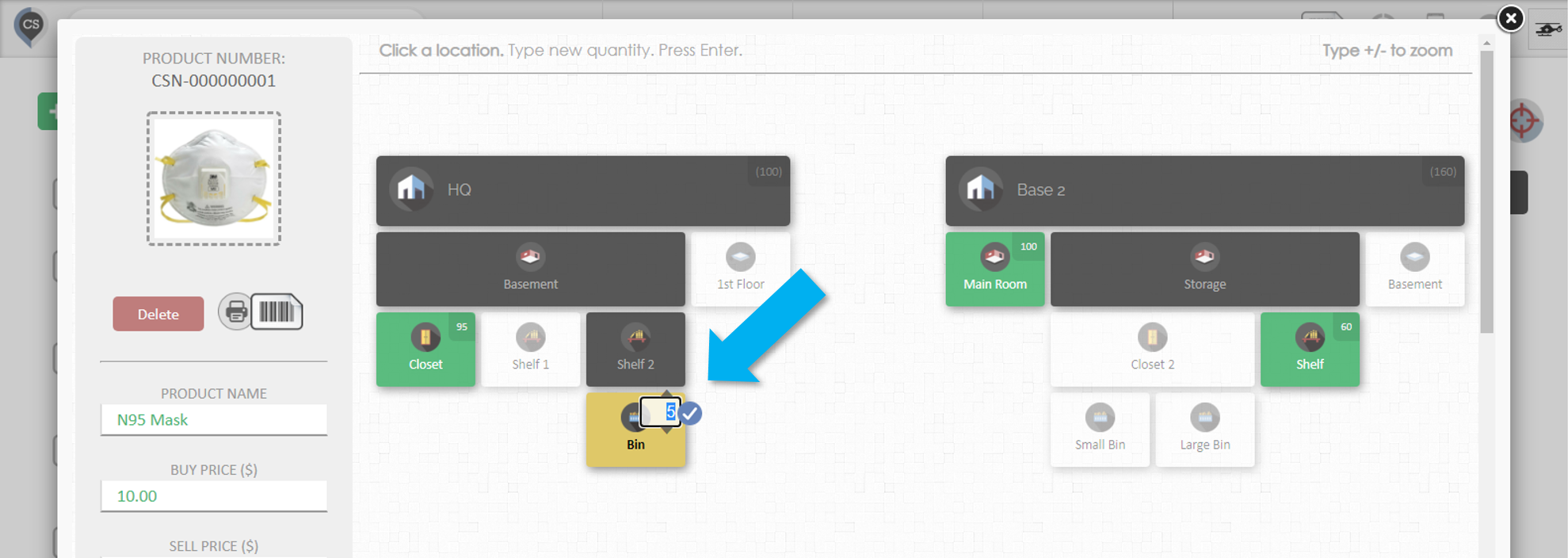
1. Select a product by searching, scanning or clicking on it in the Products page
2. The Product Editor will show you a map for the quantity distribution of that specific product
The locations that are green are the ones that contain the product. To know more about the color coding of the locations please refer to this article.
The small number on the top right corner of the locations will show you the quantity for that product in that location.
You can make quick updates to these quantities by clicking on them and typing in a new value.
Viewing Product Distribution via the Map Filter
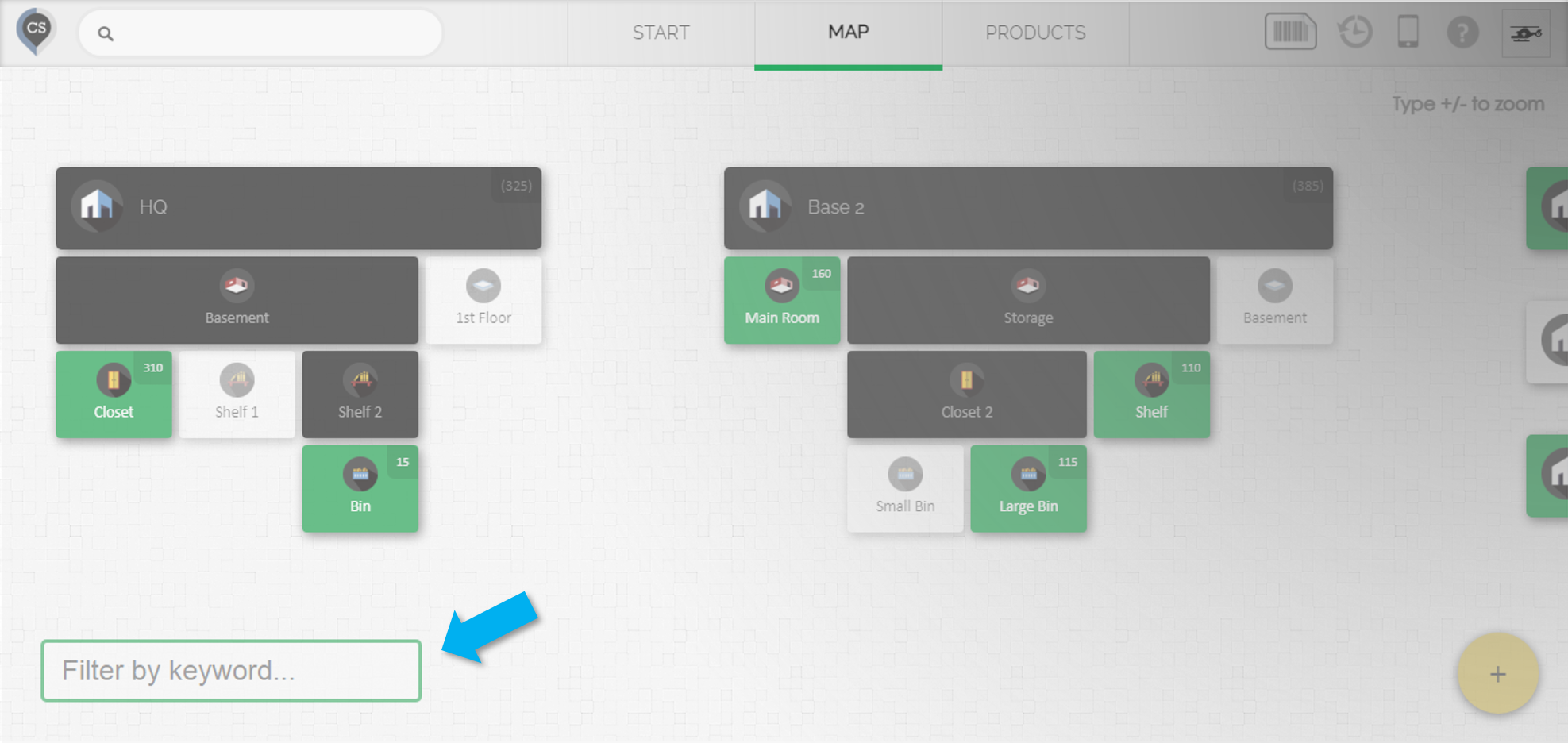
On the Map page in CyberStockroom, there is a filter located in the bottom left corner. Type any keyword, custom field, or scan a barcode of any product to see the distribution directly on the map.
The map filter is very useful for quickly viewing products and quantities without navigating away from the map.
To see the map filter in action please watch the video below.