
To learn how to DELETE locations, please refer to this article.
Renaming Locations
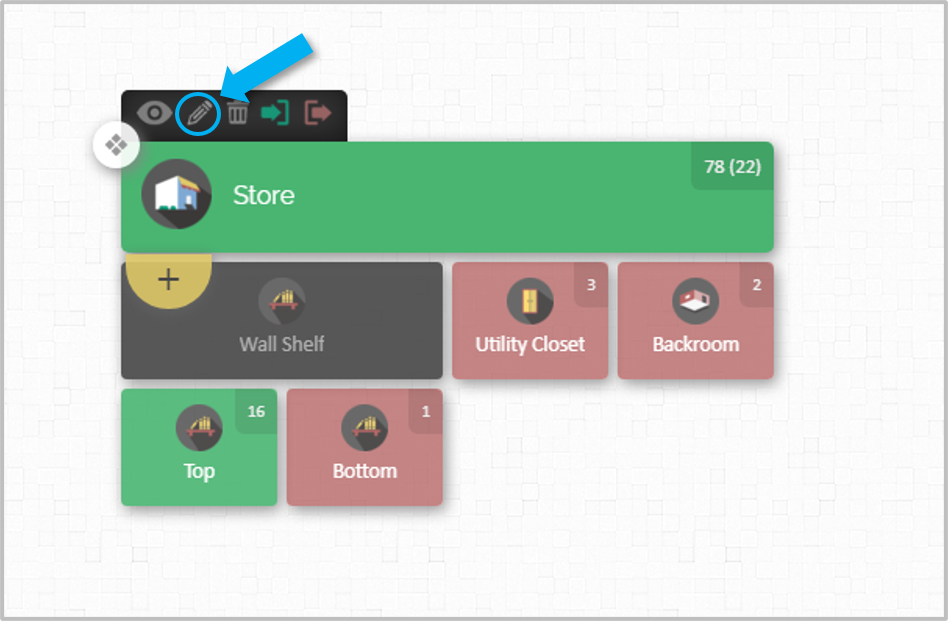
1. In the Map page hover over a location and click the edit icon. You can also find the location using the Search Bar on the top left corner of the map.
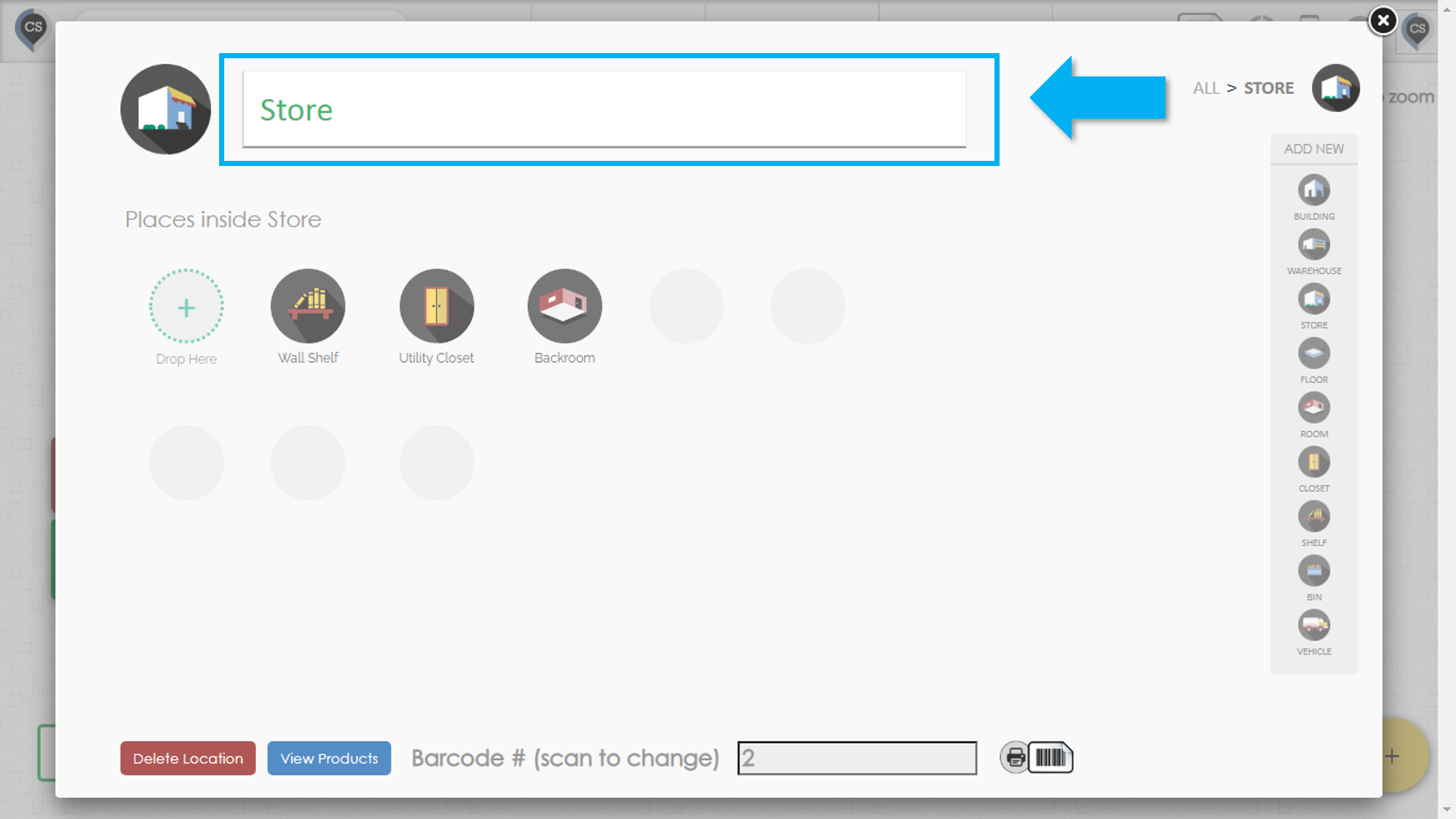
2. Enter a new value in the large Text Box at the top of the pop-up.
Changing The Barcode Number of A Location
2. Scan or enter a new barcode number to associate with that location. You will be able to print the barcode label from this page directly.
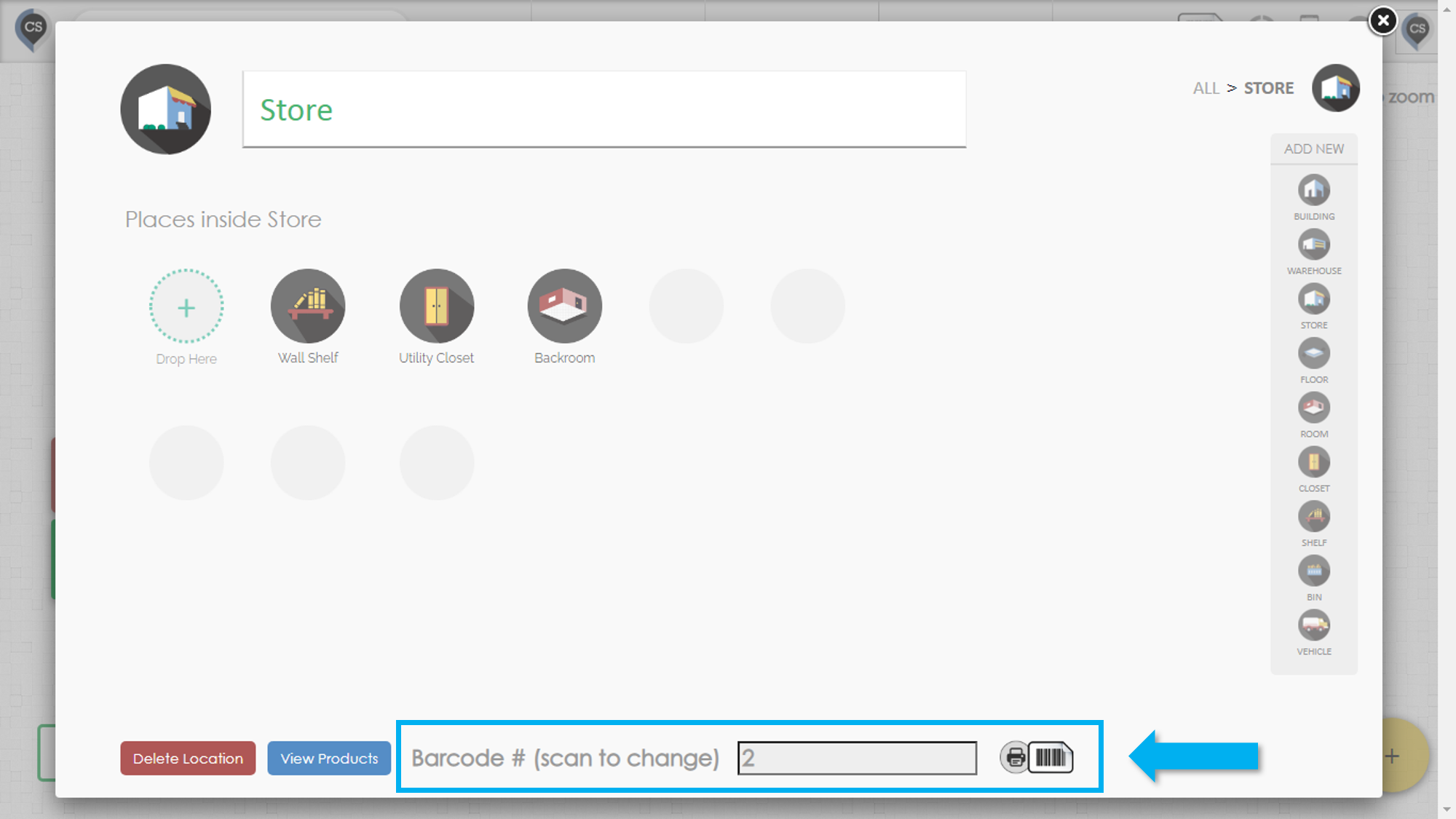
When you associate a location with a barcode number, you will be able to use the Quick Scan feature in CyberStockroom, which allows you to check items in and out of locations very quickly with a barcode scanner.