

This article describes how to create new products MANUALLY. To create products by IMPORTING them from a file, please see the article Uploading Products from a File.
Getting to the 'Create New Products' Page.
From the 'Start' page, click the 'New Products' button on start page and it will open a new window.
From the 'Products' page, click the green '+' button.
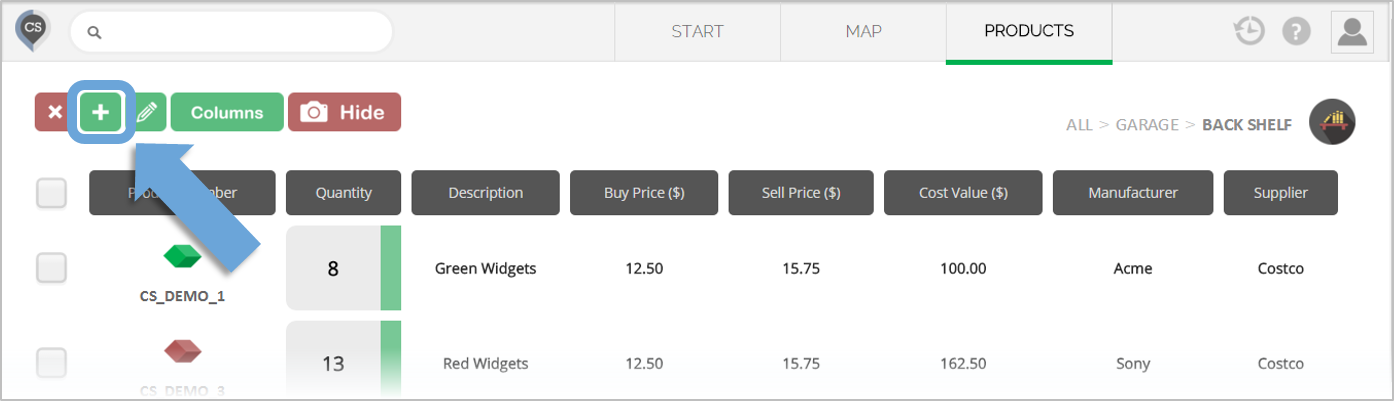
Creating New Products
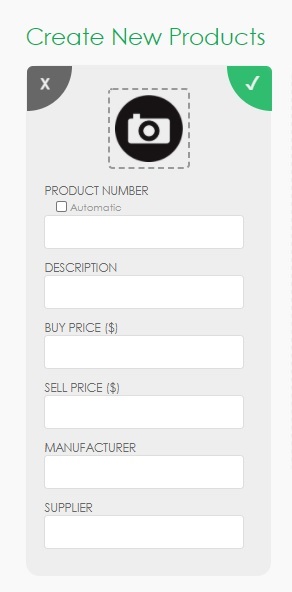
In the pop-up window, you will have the option to upload an image and fill in the product fields. To change your custom fields, please follow the instructions in the article 'Custom Fields'.
If you use product numbers (SKUs, UPC, GTIN, etc), you can type them in manually or scan them.
If you don’t use product numbers, just click ‘AUTO’ and a number will be automatically generated for your product.
You don’t need to fill in all the fields to create a product.
When you are done, press enter OR click the ‘Green check mark’ button.
After pressing enter, the product will be moved to the list on the right side, and another set of fields will appear for another product.
Save the Products You Created
After creating your products, do not forget to click the 'Save All Products' button.
If you don't click on the 'Save All' button, the products you created will be discarded.
After saving the products you created, they will automatically be added to your Product Catalog.
_____________________________________________________________________________________________________
Handling Products with Price Variations
If you need to manage products with different prices, CyberStockroom offers two effective options since variations can't be created within a single product:
Option 1: Separate Products: Create individual products for each price variation (e.g., different lots with varying prices). This works well when price adjustments are rare or minimal.
Option 2: Use Comments: If pricing fluctuates frequently, you can record price details in the comments during transactions (like check-in or checkout). Keeping a consistent format helps when reviewing reports later.