Navigating to View Product Details and Quantity Across Locations
Click the location where the product is available. Then select the product you're viewing to open the product editor window.
In the product editor window below, you will see the product details and a map of that product's distribution across all the locations. You can zoom in/out of the map by pressing the +/- keys on your keyboard.
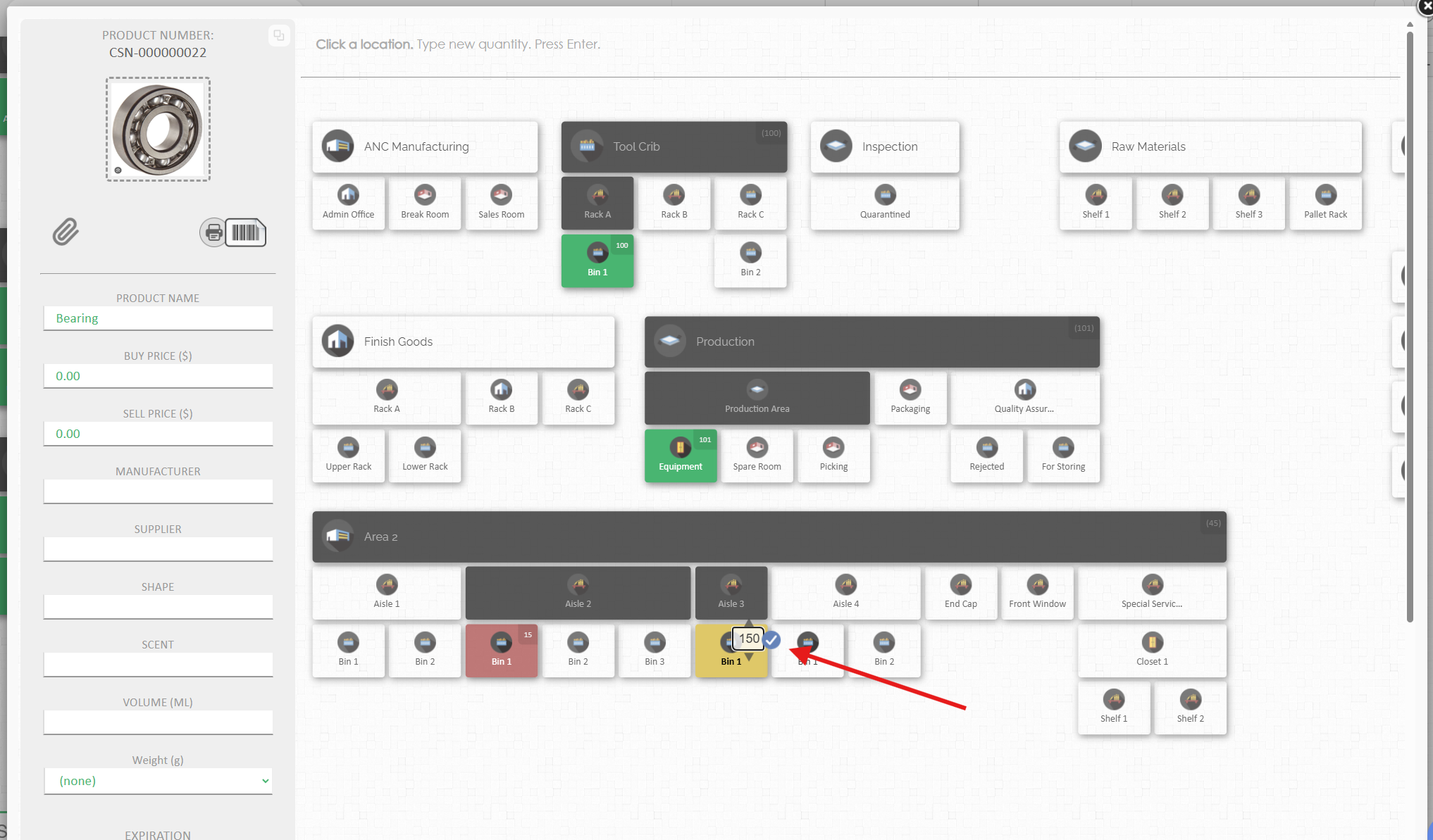
Click on any of the locations on the Product's map. Set the quantity and click the check icon.
After clicking on a location, a small number will appear in the top right.
You can edit this number to change the quantity
Click the check button or press enter on your keyboard to save.
Changing product quantity through the Products Page
Navigating the Products Page from a location in the Map.
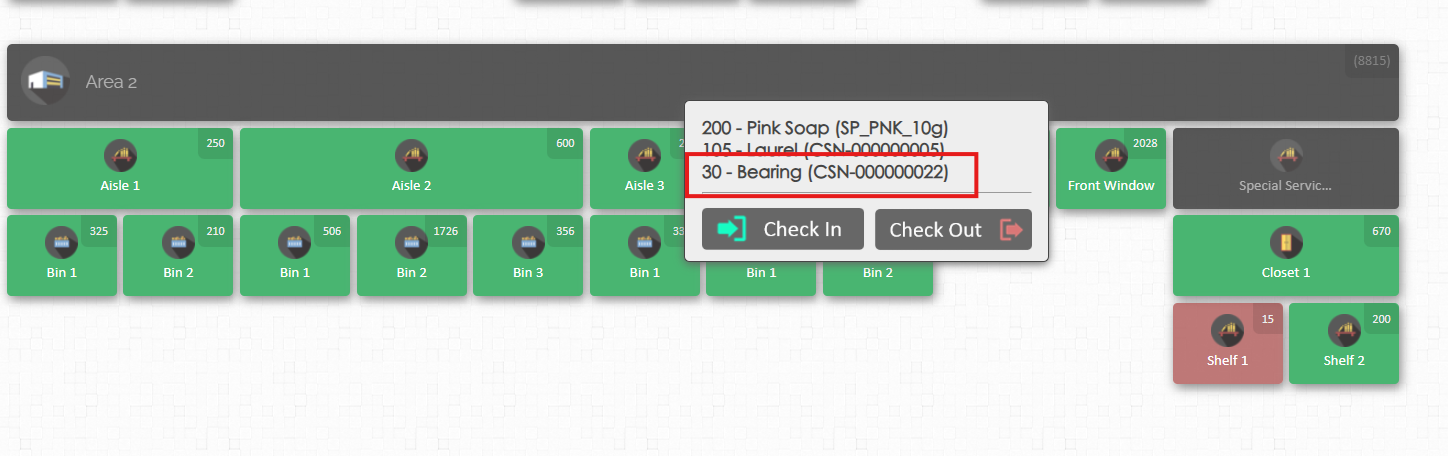
Hover your cursor over a location in your map for the option buttons to appear then click the eye icon 👁️ to view the list of product available in that location.
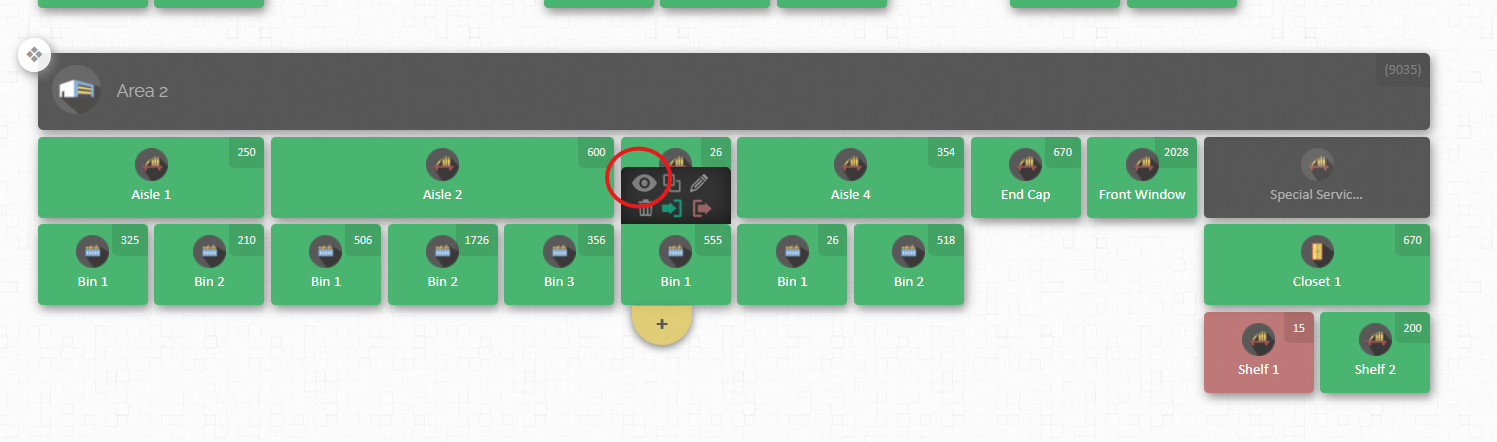
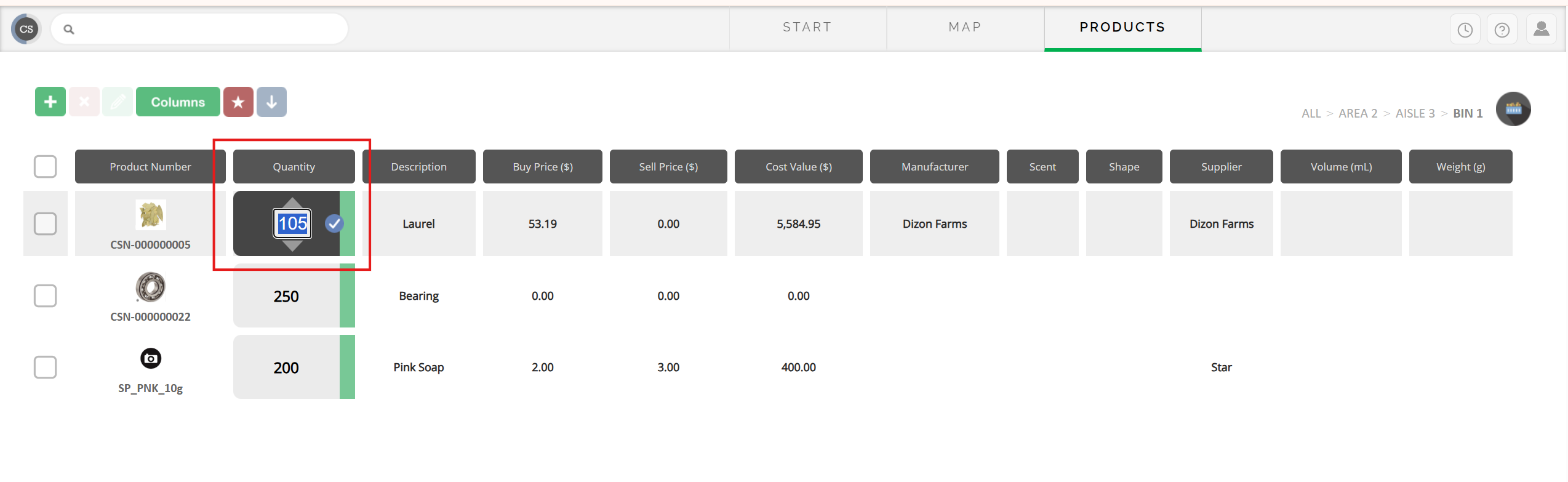
In the product list page, click the quantity of the product want to edit. Change the quantity and then the check button beside the number to save.