Changing Product Quantities
In your day-to-day operations, it is important to be able to quickly change a product's quantity in any location on your map. You may need to do this after a cycle count, or to quickly move an item, or to make a correction. Making these adjustments in CyberStockroom is very easy and intuitive.
Navigating to View Product Details and Quantity Across Locations
-
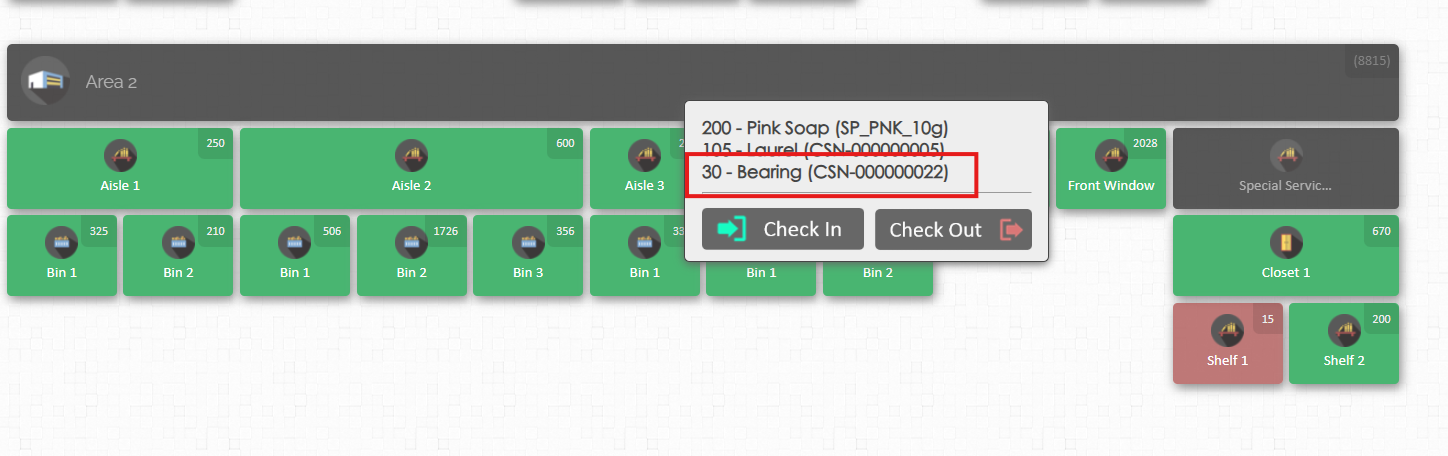
Click the location where the product is available. Then select the product you're viewing to open the product editor window.
-
In the product editor window below, you will see the product details and a map of that product's distribution across all the locations. You can zoom in/out of the map by pressing the +/- keys on your keyboard.

- Click on any of the locations on the Product's map. Set the quantity and click the check icon.
- After clicking on a location, a small number will appear in the top right.
- You can edit this number to change the quantity
- Click the check button or press enter on your keyboard to save.
Changing product quantity through the Products Page
-
Navigating the Products Page from a location in the Map.
-
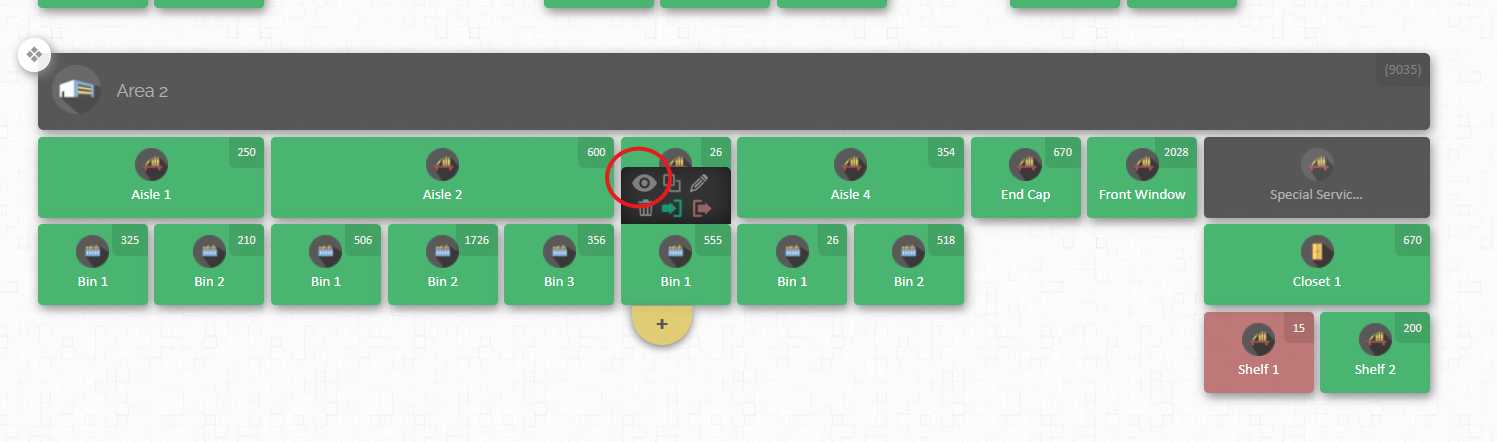
Hover your cursor over a location in your map for the option buttons to appear then click the eye icon 👁️ to view the list of product available in that location.
-
-
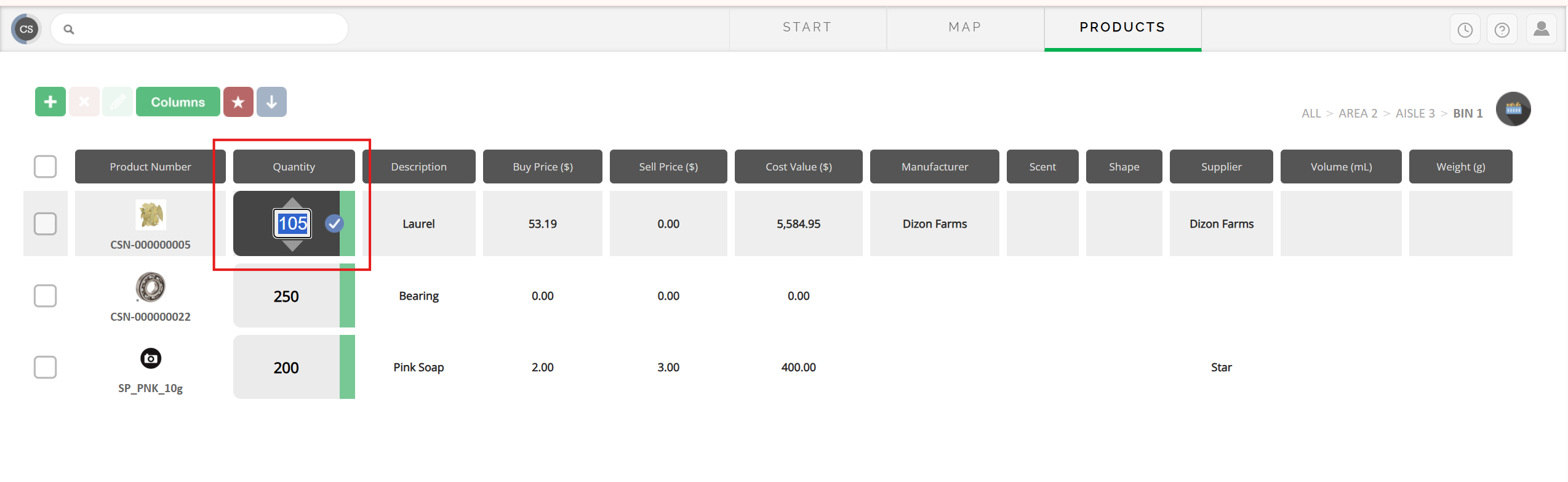
In the product list page, click the quantity of the product want to edit. Change the quantity and then the check button beside the number to save.